# How to add a custom domain to GitHub Pages
> Step-by-step guide to pointing your custom domain to GitHub Pages, including DNS setup with A records and CNAME for GoDaddy, Namecheap, and HostGator.
Published: 2023-02-02T09:24:08.000Z
Updated: 2026-04-24T10:00:00.000Z
Author: Shameem Reza
Category: Development
Canonical: https://shameemreza.com/add-custom-domain-to-github-pages/
---
import Tldr from '../../components/Tldr.astro';
GitHub Pages ships with a `github.io` subdomain out of the box, which is fine for a personal project but reads as a draft the moment someone else sees it. Pointing a real domain at it takes about ten minutes of DNS work and a single field in the repo settings.
Add your domain under repo Settings → Pages, then at your DNS provider add four `A` records pointing to `185.199.108.153`, `185.199.109.153`, `185.199.110.153`, and `185.199.111.153`, plus a `CNAME` for `www` pointing to `.github.io`. Wait for DNS to propagate (up to a few hours) and enable HTTPS in the GitHub UI once the check passes.
## Prerequisites
Before you start, you'll need:
- A GitHub account.
- A repository that already has GitHub Pages enabled.
- A custom domain you've purchased from a registrar.
## Add your custom domain in GitHub
In your repository, go to **Settings → Pages** and add your domain under the custom domain field. GitHub will start a DNS check in the background. It'll fail at first, which is expected, because the DNS records don't exist yet.
[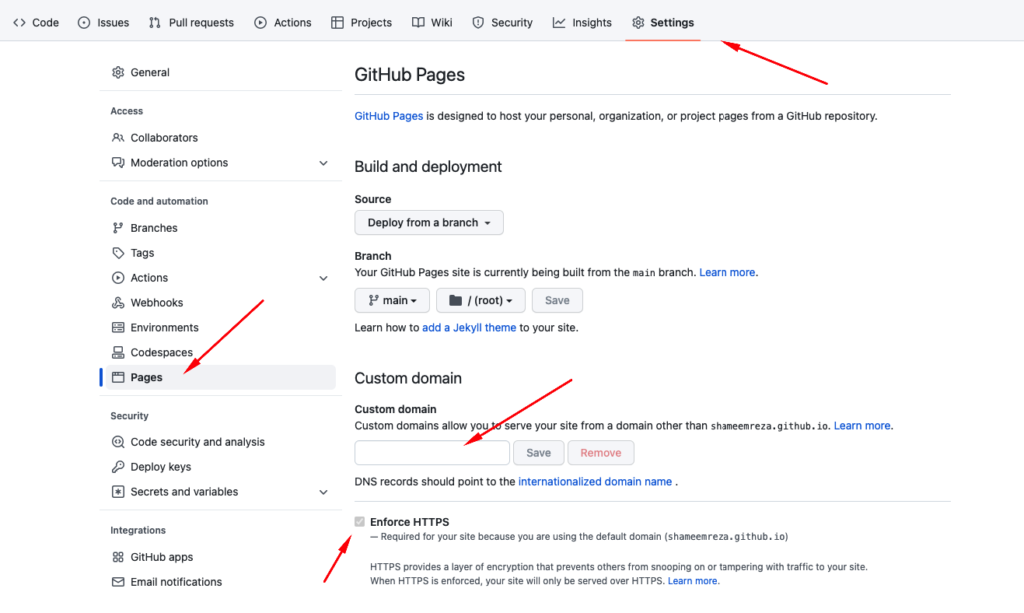](/add-custom-domain-to-github-pages/custom-domain-github/)
## Add A records and a CNAME at your DNS provider
GitHub Pages uses four static IPs for apex domains. Add an `A` record for each one on your root domain (`@`):
```
185.199.108.153
185.199.109.153
185.199.110.153
185.199.111.153
```
Then add a `CNAME` record for `www` that points to `.github.io` (replacing `` with your GitHub username, or the org name if the repo is owned by an org).
Always cross-check the [GitHub Pages custom domain docs](https://docs.github.com/en/pages/configuring-a-custom-domain-for-your-github-pages-site/managing-a-custom-domain-for-your-github-pages-site) for the current IPs. GitHub has rotated them in the past.
## Registrar-specific steps
The DNS records above are the same everywhere. Only the UI changes between registrars. Here's where to find DNS settings at a few common ones.
### GoDaddy
- Log in and open your domain.
- Go to **DNS Management**.
- Add the four `A` records listed above.
- Add a `CNAME` with **Host:** `www` and **Points to:** `.github.io`.
- Save.
### Namecheap
- Log in and open the domain.
- Go to **Advanced DNS**.
- Add the four `A` records listed above.
- Add a `CNAME` with **Host:** `www` and **Points to:** `.github.io`.
- Save.
### HostGator
- Log in and open the domain.
- Go to **Advanced DNS**.
- Add the four `A` records listed above.
- Add a `CNAME` with **Host:** `www` and **Points to:** `.github.io`.
- Save.
## Wait for DNS to propagate
DNS changes take anywhere from a few minutes to 24 hours to propagate. You can track it with [DNSChecker](https://dnschecker.org/), which shows how the records resolve from different locations around the world.
Once it's propagated, GitHub's DNS check will turn green and the **Enforce HTTPS** checkbox will become available. Turn it on. Your domain is live.