Yesterday I was trying to delete browsing history in Firefox internet browser, but unfortunately didn’t know the proper way to clear the browsing history.
After doing some simple research I found a very easy one click to clear browsing history in Firefox browser. And today I am going to share the tricks I found.
You may lough on me that being a software developer, I don’t know this simple tricks. But trust me, a lot of people don’t know the proper way to delete browsing history in Firefox.
If you follow this step by step guide, I am sure that you will be able to delete browsing history in Firefox.
Wrong way to Delete Browsing History in Firefox
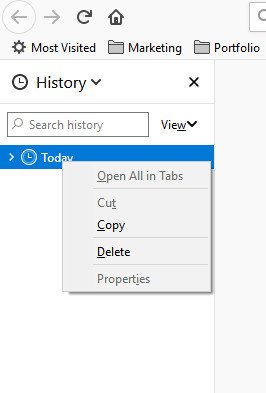
First let me show you the old and very hard way. Note that, if you follow this way, your browser may crush or hang most of the time as I faced this issue.
If you press CTRL+H, then Firefox Browsing History tab will open at left side. From there you can select or view as per month. Here just press right click and you will see the download button. Again, it will take time and sometime your browser may crush or hang for while.
Now I am going to share the best and an easy way to delete browsing history in Firefox. If you follow this easy steps, you will be able to delete browsing history even from last few hours.
Easy way to Delete Browsing History in Firefox
Start your Firefox browser and click on the Hamburger menu. You will see this menu at top right corner of the window.
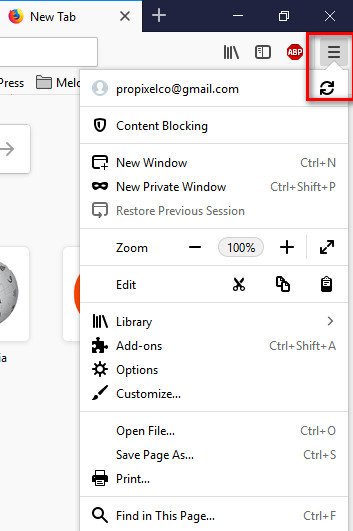
Once the menu open, click on the Library option and you will History option as per bellow screenshot. Click on it to open Firefox History clear option.
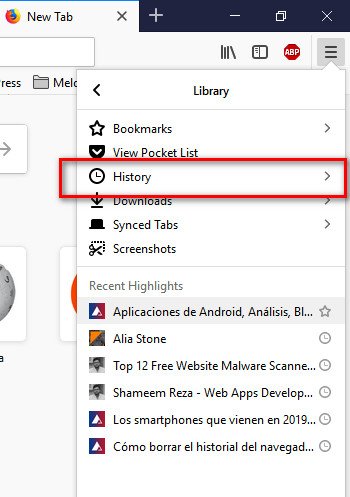
Once you click on History button, another tab will open where you will see something like: Clear recent History. Bingo, this is the option we are looking for to delete browsing history in Firefox.
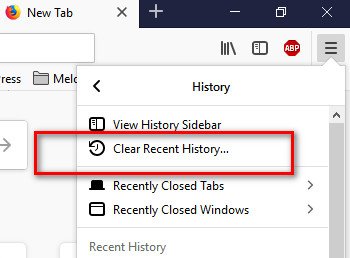
Now while you will click on Clear recent history, another new tab will open as per bellow screenshot.
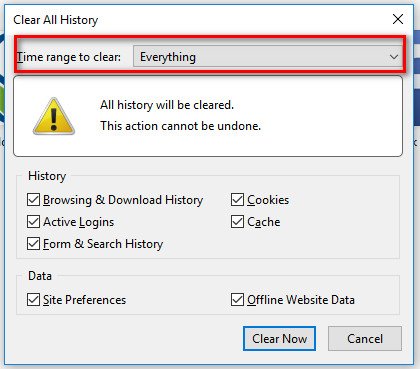
Are you are really a super star, because you found the option to delete browsing history in Firefox just in click. Here you will see some different option. You need to chose those as per your needs and from Time range to clean option, you need to chose how you will delete your browsing history in Firefox.
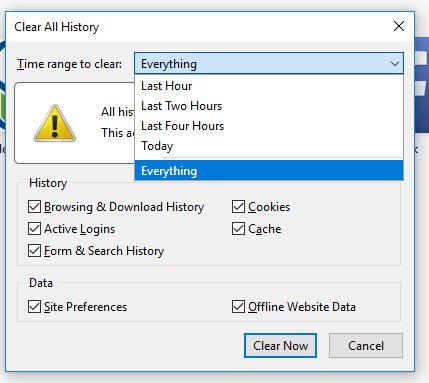
You have option to delete browsing history from last hour, last two hours, last four hours, today or may be everything.
Once you chose your option, press on Clear Now button and Firefox will clear all the Browsing History just in a second.
What You may Delete
Now let be familiar with some history clean options of Firefox. You only can delete certain things from Firefox history clean option, such as cache or browsing history, or clear everything.
Here is a in details description of what each of the options will delete:
- Browsing & Download History: If you chose this option, then all your browsing history and download history will be deleted. As per your deleting option, Firefox will clear all your visited site list.
- Cookies: This option will delete all the cookie list from your browser, which you may stored while vising some website. Even, because of this option, you may logout from all site like Gmail, Facebook etc.
- Active Logins: It will logout from all the site where you logged in with remember me option.
- Cache: Selecting this option will clear all cache file, which your browser stored. You need to clear browser cache, if website not work properly.
- Form & Search History: While we type something in search bar, search engine show some suggestion based on our previous search. If you clean this option, then all your searching history will be deleted from Firefox.
- Site Preferences: Choosing this option will clear few things from Firefox memory like whitelisted popup blocker, zoom in certain website and so many things.
- Offline Website Data: It will delete all the offline saved files in Firefox. If you saved anything in your Firefox browser to access in offline, then you will lose those data forever.
Now you know the proper way to delete browsing history in Firefox. I am sure that a lot of Firefox browser like me will be helpful from this post as it will guide you the right way.
Thank you for being here and please let me know if you know other easy to delete the browsing history in Firefox. Because I like to follow the easy but effective method.
Join the Conversation
Have thoughts, questions, or a different take? I'd love to hear from you.
Powered by Giscus · Sign in with GitHub to comment. · Privacy policy