
On this page
After migrating a WordPress site, the single most common post-launch bug is the one where all the images are broken. The posts are there, the thumbnails are generated, but nothing loads. Nine times out of ten, the cause is the same: WordPress is looking for media at a path that no longer matches where the files live.
What a bad upload path actually breaks
When the path is wrong, uploads still succeed but WordPress writes them to the wrong directory, so the admin preview and the frontend both point at a URL that 404s. Existing images can break at the same time if the old install used an absolute path that doesn’t exist on the new server.
You can confirm it’s a path issue by checking Settings → Media → Store uploads in this folder in the database (the upload_path option in wp_options). If it’s empty, WordPress uses the default. If it’s set to something like /home/oldhost/public_html/wp-content/uploads, that’s your problem.
Option 1: set it in wp-config.php
Open wp-config.php at the root of your WordPress install and add this above the /* That's all, stop editing! Happy publishing. */ line:
define( 'UPLOADS', 'wp-content/uploads' );The path is relative to your WordPress root, without a leading slash. This overrides whatever is stored in the database and gives you a consistent path that travels with your site.
If your uploads directory is somewhere custom, swap in the right relative path. Just make sure the folder actually exists on the server and has the usual year/month subfolders inside it.
Option 2: use the WP Original Media Path plugin
If editing wp-config.php isn’t an option (restricted hosting, managed WordPress, etc.), WP Original Media Path does the same job through the UI.
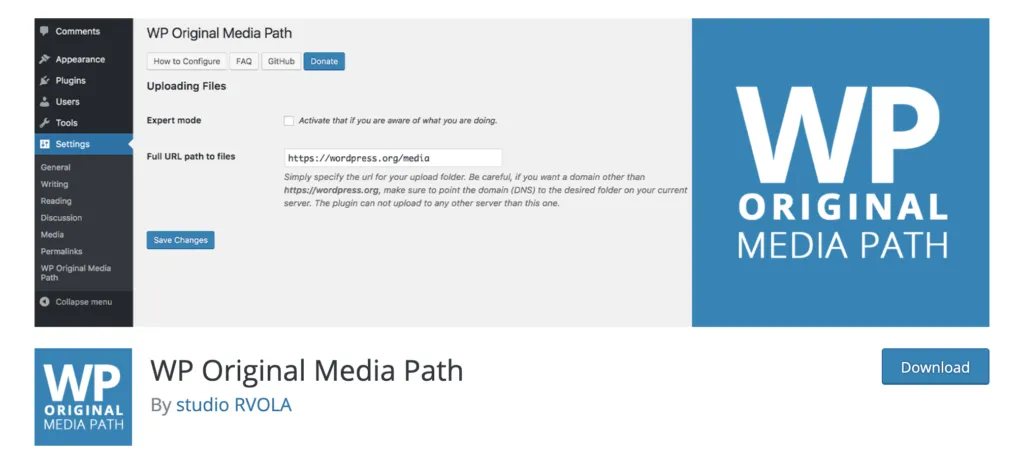
After installing, you’ll see a new entry under Settings.
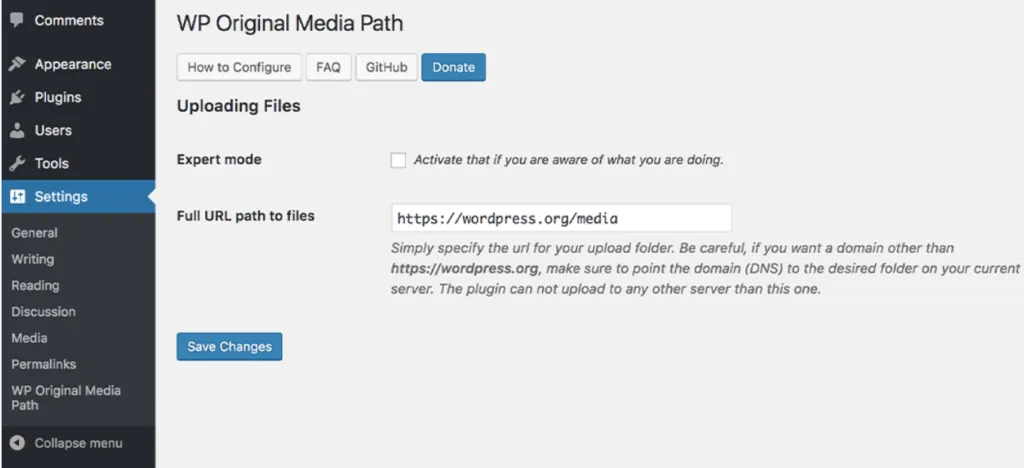
You don’t need expert mode for the common case. Just enter the path from your domain root (usually /wp-content/uploads) and save. The plugin writes the value into the database and WordPress picks it up on the next request.
A warning about live sites
This fix is for fresh migrations or sites with the wrong default path set. Don’t change the upload path on a working site that already has images uploaded.
If you do, WordPress writes new uploads to the new path while every existing image stays at the old one. You end up with two upload directories and a broken media library. If you really need to move an existing uploads folder, move the files first, then update the path, then run a search-and-replace on the database for the old URLs.
For the standard post-migration case, setting the path once gets every image loading again.

Shameem Reza Happiness Engineer at Automattic
I fix WooCommerce problems for a living and review plugins for WordPress.org. Every fix here is tested on a clean site first.



No comments yet. Ask the first question.