
On this page
When I ask a store owner for access to their WordPress site, I usually get one of a few answers.
Some say no. Some don’t reply, and the ticket just waits. Some paste their admin username and password straight into the ticket, in plain text.
Some say yes, but you can tell they’re worried their site will get messed up. And some send the login with one line attached: please don’t change anything without asking me first.
Every one of those answers makes sense to me. Your admin password opens everything: orders, customers, plugins, and your own account. This post is how to let someone in without handing that over.
Why sharing your password is the wrong fix
A password pasted into a ticket or an email doesn’t go away. It sits in the thread and in their inbox long after the work is done.
They also log in as you. Every change they make shows under your name, so later you can’t tell what you did from what they did.
And you have to remember to change the password afterwards. Most people don’t.
Create a temporary admin account by hand
WordPress can do this with no plugin at all. It takes a few minutes.
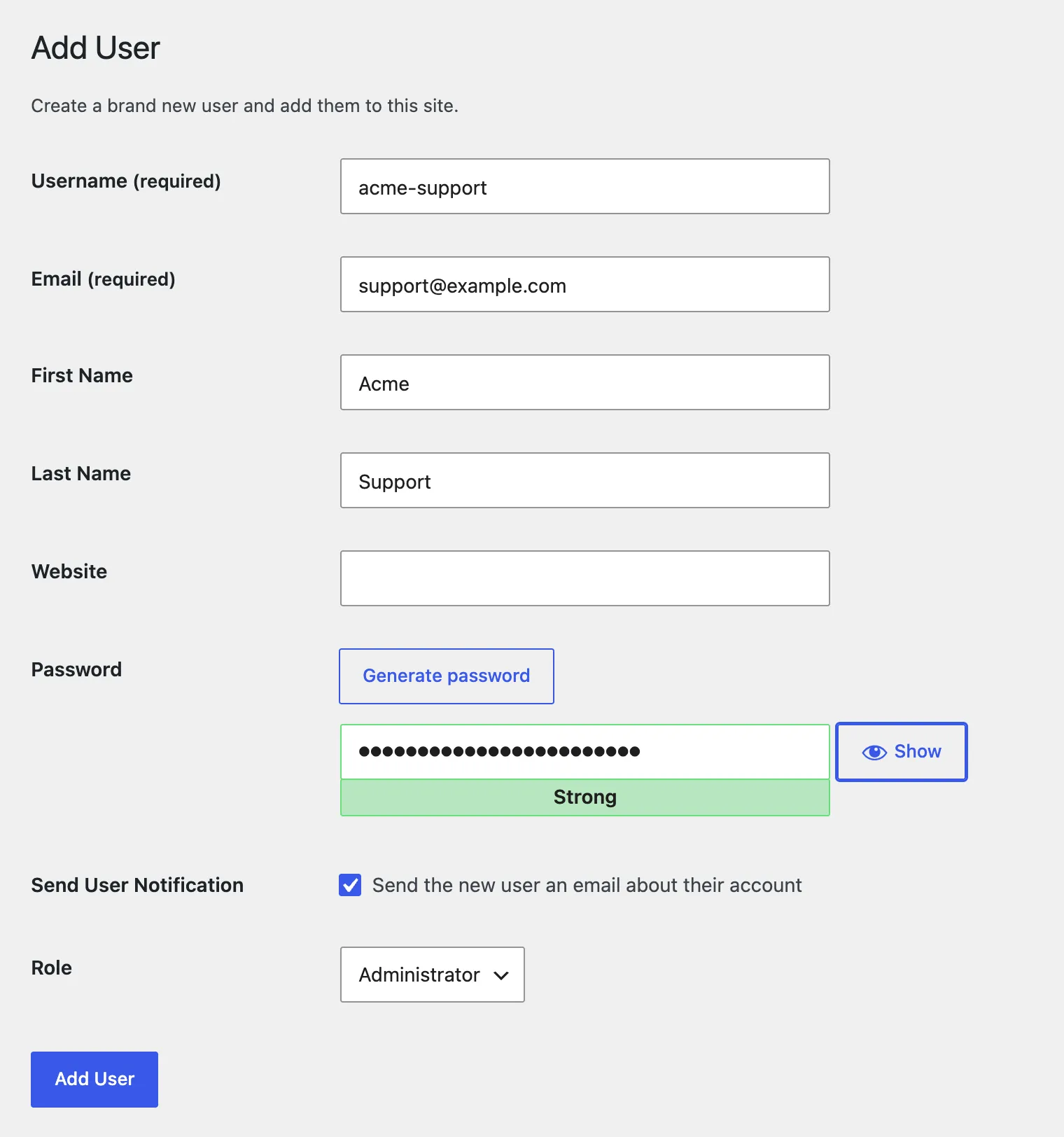
- Go to Users > Add User.
- Use a username that says who it’s for, like
acme-support, and their email address. - Pick the role. Only choose Administrator if the job needs it.
- Leave “Send the new user an email about their account” ticked. They get a link to set their own password, so no password travels between you.
- Click Add User, and set yourself a reminder to remove the account.
On a WooCommerce store, the Shop manager role can manage orders, products and store settings. It can’t install plugins or add other users.
For a quick task, that’s enough. For troubleshooting, it usually isn’t. When I look into a problem, I need to see which plugins are active, check Site Health, and open the settings of other plugins and the theme, and Shop manager can’t reach any of those.
So most support people will ask for an administrator account. That’s normal, and it’s why ending the access cleanly matters so much.
How to remove a developer from your WordPress site
This is the step that gets skipped. Go to Users > All Users, hover over their name, and click Delete.
WordPress then asks what to do with their content. Pick “Attribute all content to another user” and choose yourself. If you pick “Delete all content”, any page or post they wrote is deleted with them.
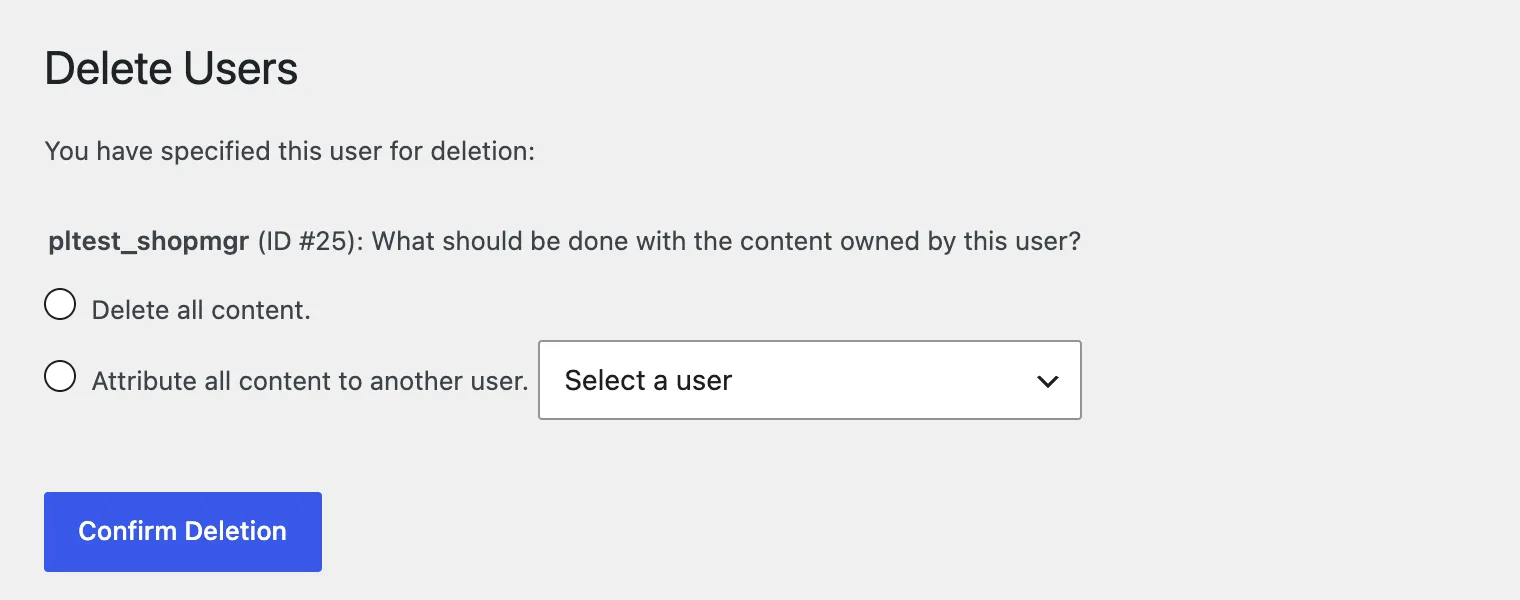
Deleting the user also logs them out everywhere, because their login sessions are removed with the account.
What temporary access should mean
Whatever you use, a plugin or the steps above, check it against these six things.
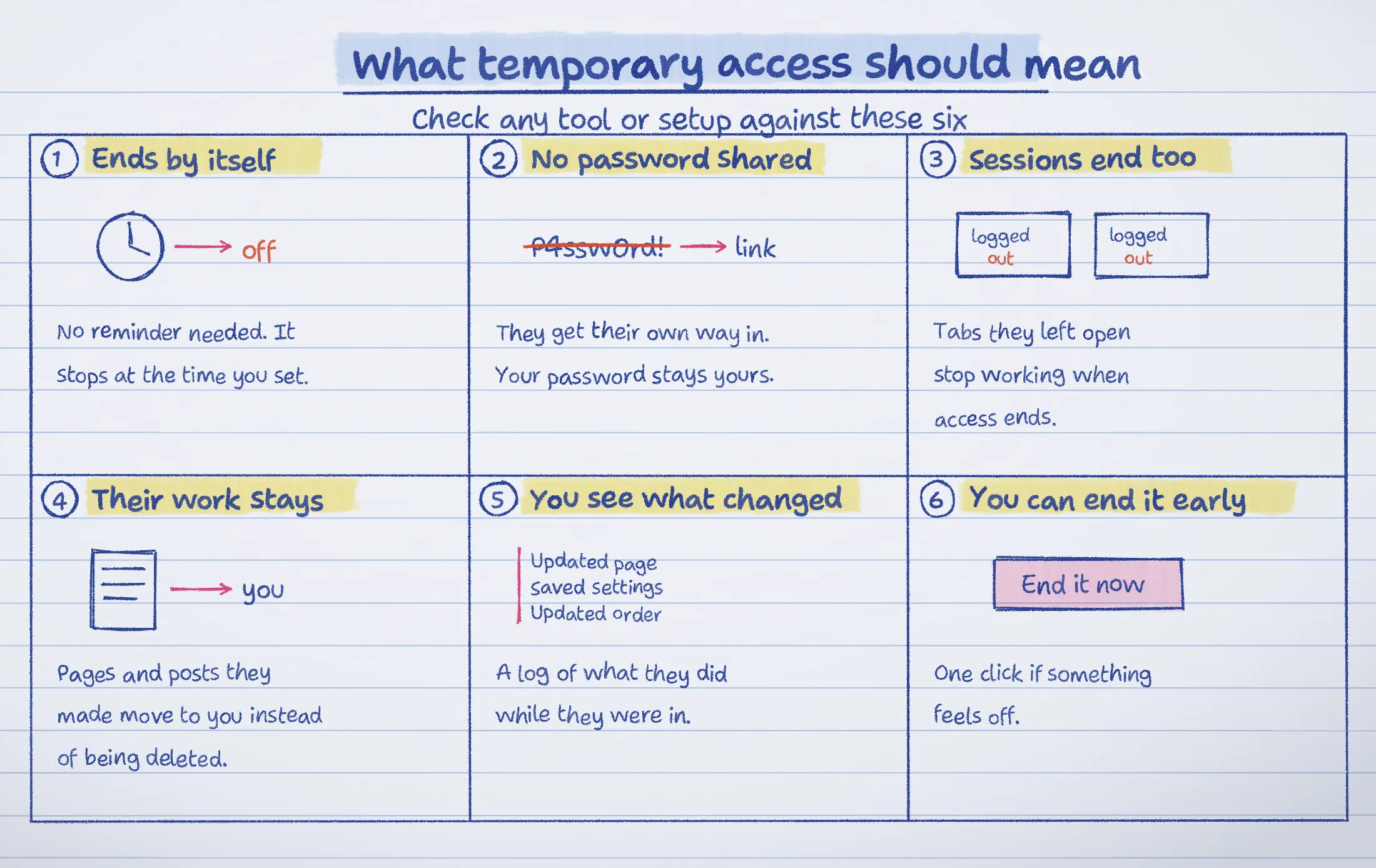
Doing it by hand covers most of them, as long as you remember the last step. A plugin does the remembering for you.
Use a temporary login plugin
The most used option is Temporary Login Without Password, with over 100,000 active installs. You pick a role and an expiry, and it gives you a login link to share.
I built my own, HappyAccess, because of the answers at the top of this post. You create a pass, choose what they can do and for how long, and send them a login link or an 8-digit code.
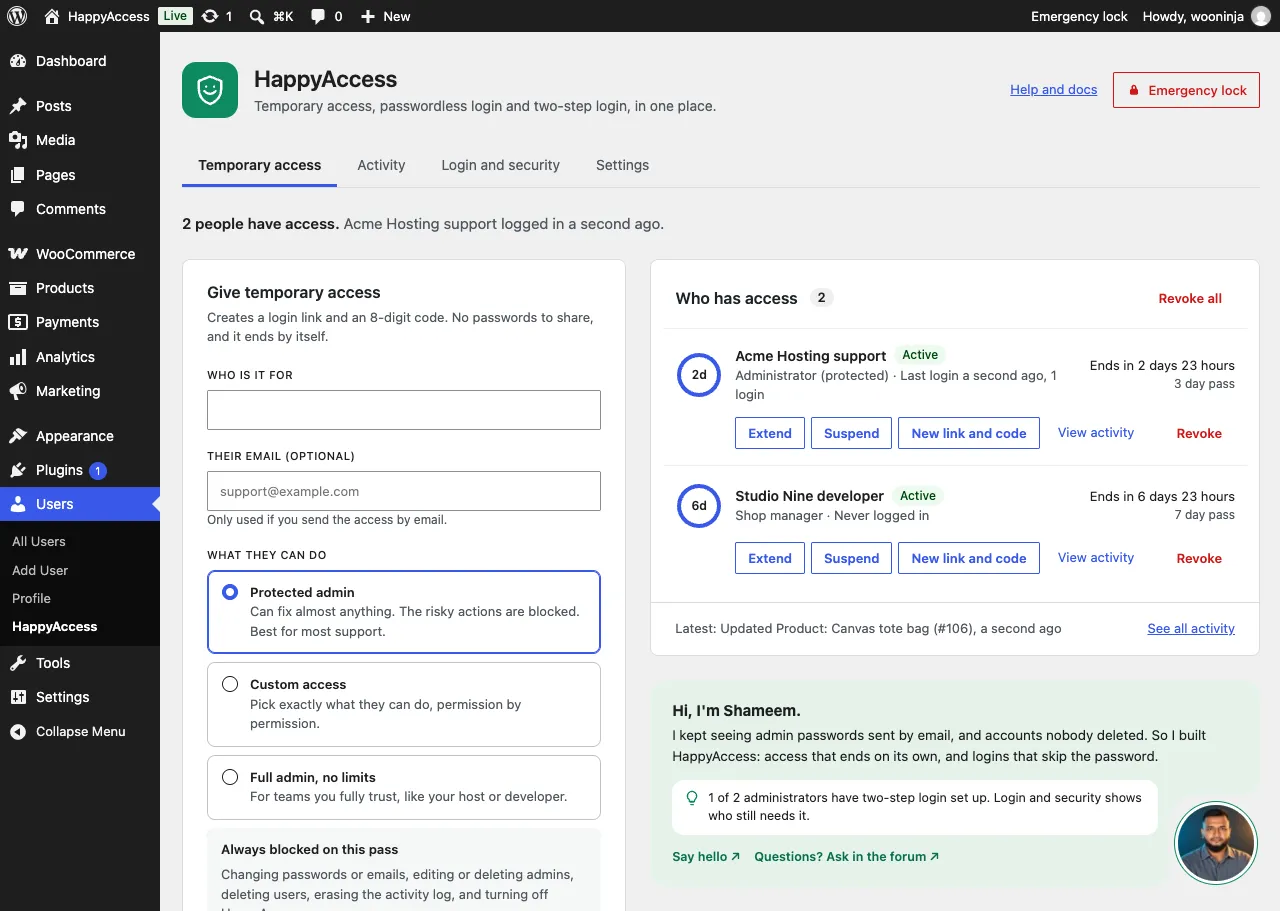
The default level, Protected admin, is a full admin who can’t install plugins, create other admins, or touch your account. It’s the middle ground I wanted for the worried owners: support gets the admin screens they need to troubleshoot, and the riskiest actions stay blocked.
When the support person opens the link, they see a confirm screen first. Email and chat apps often open links to scan them, so this stops a one-time link from being used up before they click it.

When the time is up, their sessions end, the account is removed, and anything they wrote moves to you. You can also end a pass early from its row, or use Emergency lock to end every pass at once.
Either plugin beats sharing a password. Pick the one that fits how you work.
What to send the person
Whichever way you go, send the access privately, not in a public channel. A login link works like a password while it’s valid, so keep the time short. Here’s a message you can copy and change.
Hi, here's temporary access to my site.

Login link: [paste the link]
It works until [date and time].

Please don't change [settings, theme, plugins] without asking me first.
If you need more time, let me know and I'll extend it.
The line about asking first is the one I see most from site owners, and it’s a fair ask. Put it in writing.
When the time is up
- Check that the account is gone, or remove it yourself.
- If you deleted it by hand, make sure their content went to you.
- If you ever shared your own password, change it now.
- Look through Users > All Users for any administrator you don’t recognize.
- Check Plugins for anything that was installed while they were in.
If you’re on my side of the ticket, the one asking for access, this is the post I’d send to the site owner.

Shameem Reza Happiness Engineer at Automattic
I fix WooCommerce problems for a living and review plugins for WordPress.org. Every fix here is tested on a clean site first.

No comments yet. Ask the first question.