

The Product data box in the WooCommerce product editor ships with seven tabs by default. If you’re selling digital products, one-off services, or a small catalog where nothing ever ships and nothing ever links to anything else, most of those tabs are just visual noise. The woocommerce_product_data_tabs filter lets you remove the ones you don’t use.
Remove tabs with a filter
The woocommerce_product_data_tabs filter receives the full array of tab definitions. Unsetting a key removes that tab from the UI entirely.
add_filter( 'woocommerce_product_data_tabs', 'shameem_remove_product_data_tabs' );
function shameem_remove_product_data_tabs( $tabs ) {
    // Uncomment the lines for any tabs you want to hide.
    // unset( $tabs['general'] );
    unset( $tabs['inventory'] );
    unset( $tabs['shipping'] );
    unset( $tabs['linked_product'] );
    // unset( $tabs['attribute'] );
    // unset( $tabs['variations'] );
    // unset( $tabs['advanced'] );
    return $tabs;
}
Save it as a new snippet in the Code Snippets plugin, or paste it into your child theme’s functions.php. Don’t edit the parent theme, the change will disappear the next time the theme updates.
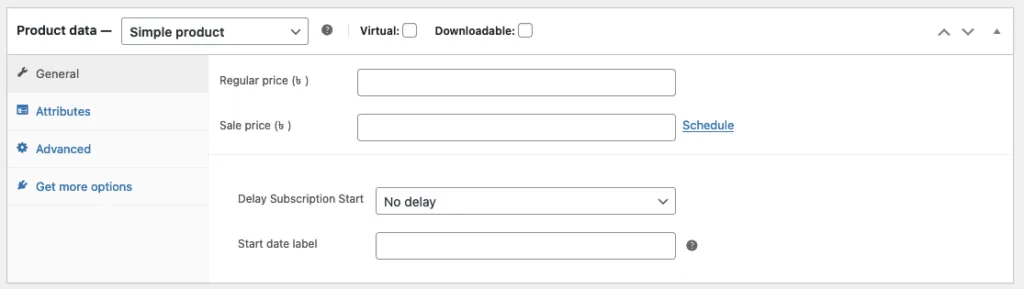
Open any product and the tabs you unset are gone:
Hide marketplace suggestions on the product screen
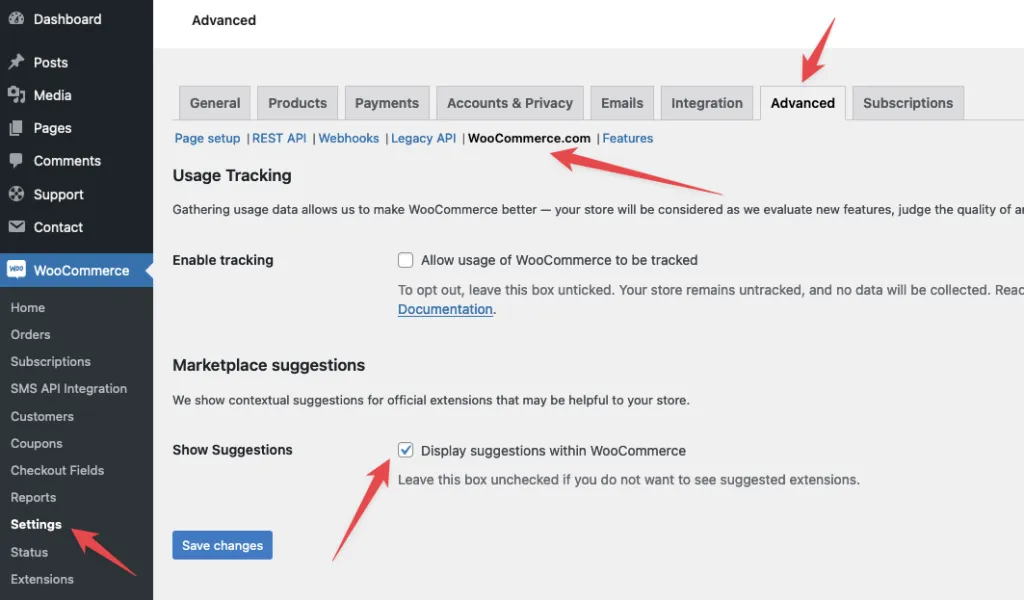
The “Get more options” block that appears on the product screen is a marketplace upsell. You can turn it off in settings without touching code. Go to WooCommerce → Settings → Advanced → WooCommerce.com and uncheck Display suggestions within WooCommerce.
If you’d rather enforce it in code so it stays off across deploys, add this one-liner to the same snippet file:
add_filter( 'woocommerce_allow_marketplace_suggestions', '__return_false' );Both approaches do the same thing. The setting is easier for a single site. The filter is safer for a multi-site or client workflow where you don’t want someone re-enabling it by accident.
Each of these snippets is safe to drop into a child theme or the Code Snippets plugin. Remove them the same way if you change your mind later.

Shameem Reza Happiness Engineer at Automattic
I fix WooCommerce problems for a living and review plugins for WordPress.org. Every fix here is tested on a clean site first.



No comments yet. Ask the first question.