For years I migrated sites by hacking the same file. Open all-in-one-wp-migration/constants.php, find AI1WM_MAX_FILE_SIZE, change it to whatever I wanted, save. The 512 MB ceiling would vanish and a 3 GB backup would import without a fuss.
Then version 7.71 landed and the constant was gone. My clients started hitting the limit again. The old blog posts saying “just edit constants.php” stopped working overnight, and the workaround I’d been using for years was dead.
So I went looking for what actually controls the limit now. What I found surprised me a little. The real bottleneck isn’t on the server. It’s a JavaScript check in the browser, and the import itself has been chunked since forever.
What actually blocks large imports
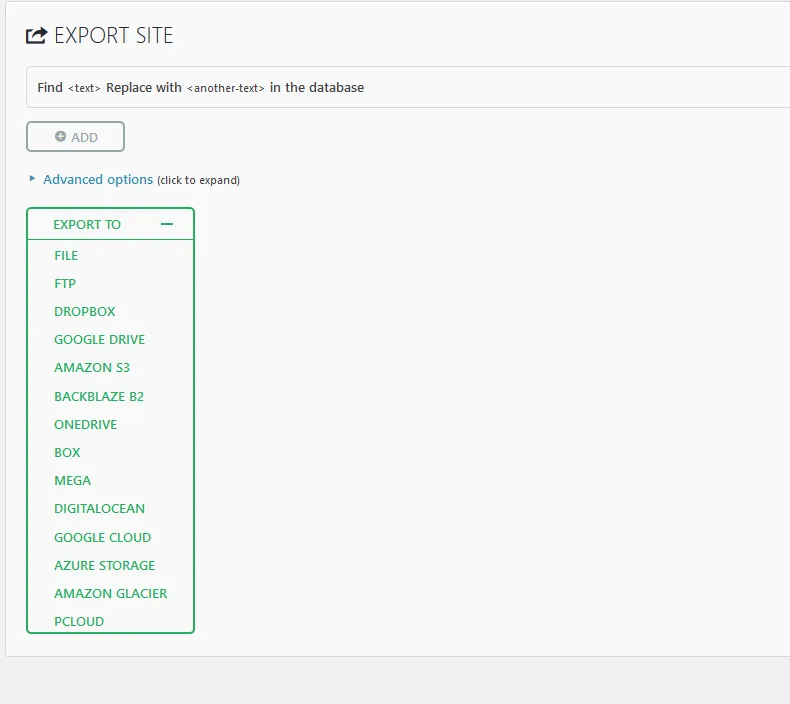
All-in-One WP Migration has three top-level options in the admin: Export, Import, and Backups. You can export a 3 GB archive without breaking a sweat, store it in Dropbox or Google Drive, or download it locally. Import is where the wall shows up.
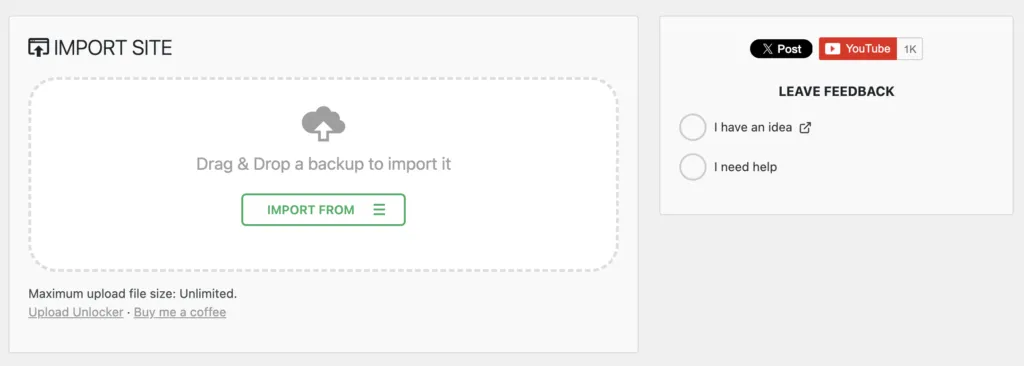
Look at the free plugin’s import page and the upload UI binds itself to wp_max_upload_size(), which WordPress computes from your PHP upload_max_filesize and post_max_size. That number gets written into a JS variable at page render time, and the frontend refuses to start an upload if the selected file exceeds it. That’s the label everyone sees above the drop zone:
Maximum upload file size: 512 MB.If you pick a larger file and try to upload, the dialog that pops up says:
The file that you are trying to import is over the maximum upload file size limit of 512 MB.Both come from the same JS gate. The message is about the WordPress-reported limit, not about what the import can actually handle. Once an upload starts, All-in-One WP Migration splits the file into chunks, typically 5 MB, and sends each one as a small, bounded request. Your PHP upload_max_filesize never sees a 3 GB payload. It sees a stream of 5 MB ones.
That means the entire concept of “raising the upload size limit” is the wrong frame. There’s nothing to raise on the server, because the server never gets asked for it. You need to convince the browser-side check that the file is fine to upload. Then the existing chunked uploader handles everything.
Why the old constants.php hack stopped working
The old fix edited a constant called AI1WM_MAX_FILE_SIZE in the plugin’s constants.php. Before version 7.71, that constant fed directly into the displayed limit and the JS gate. Bump the constant, both went up.
Somewhere around 7.71, ServMask removed the constant and moved the check to wp_max_upload_size() filtered through an ai1wm_pro message block that doubles as an upsell for their paid extension. That filter prints this line on the import page:
Import failed. Your file exceeds the upload limit set by your host web server. Our Unlimited Extension bypasses this! If you prefer a manual fix, follow our step-by-step guide on raising your upload limit.If you’re reading an old tutorial that tells you to edit constants.php, you’ll open the file, find nothing to edit, and wonder if the plugin was updated under you. It was. The whole approach is gone.
The fix I use now
I wrote a small plugin called Upload Unlocker for All in All Migration. It targets the four places the limit actually lives:
- The
upload_size_limitfilter, raised only on All-in-One WP Migration admin screens. - The
ai1wm_profilter, which lets me replace the “Your host restricts” upsell line with a plain “Maximum upload file size: Unlimited” confirmation. - The enqueued
ai1wm_importscript, patched inline to override theai1wm_uploader.max_file_sizeJS gate. - The enqueued
ai1wm_backupsscript, patched to defineAi1wm.FreeExtensionRestoreso the one-click Restore button on the Backups page actually restores instead of prompting you to buy the paid extension.
No plugin files get modified. Everything uses standard WordPress hooks, so a plugin update or an AI1WM update won’t break anything.
Install it
Download the zip from the GitHub releases page, then in WordPress admin go to Plugins, Add New, Upload Plugin, pick the zip, activate. Make sure All-in-One WP Migration itself is also active. If it isn’t, the plugin shows a warning notice and does nothing, so you can safely leave it installed without side effects.
Now go to All-in-One WP Migration, Import. The upload area will read “Maximum upload file size: Unlimited” and the file picker will accept any size. As a bonus, the Restore button on the Backups page will also work, which is otherwise locked behind their paid extension.
The snippet version if you’d rather not add another plugin
If you’d rather paste code than install one more thing, here’s the equivalent as a standalone snippet. Drop it in a child theme’s functions.php, use a code snippets plugin like SnipDrop or WPCode, or save it as wp-content/mu-plugins/ai1wm-unlock.php for something that survives theme switches.
<?php
// Practical ceiling for the JS gate. JavaScript's Number.MAX_SAFE_INTEGER,
// so the value stays exact when it crosses the PHP-to-JS boundary.
const AI1WM_UNLOCK_LIMIT = 9007199254740991;

add_filter( 'upload_size_limit', function ( $limit ) {
    if ( ! ai1wm_unlock_is_migration_screen() ) {
        return $limit;
    }
    return max( (int) $limit, AI1WM_UNLOCK_LIMIT );
} );

add_filter( 'ai1wm_pro', function () {
    return '<p class="max-upload-size">Maximum upload file size: Unlimited.</p>';
}, 20 );

add_action( 'admin_enqueue_scripts', function () {
    if ( ! ai1wm_unlock_is_migration_screen() ) {
        return;
    }
    if ( wp_script_is( 'ai1wm_import', 'enqueued' ) || wp_script_is( 'ai1wm_import', 'registered' ) ) {
        wp_add_inline_script(
            'ai1wm_import',
            'if(typeof ai1wm_uploader!=="undefined"){ai1wm_uploader.max_file_size=Math.max(ai1wm_uploader.max_file_size,' . AI1WM_UNLOCK_LIMIT . ');}',
            'after'
        );
    }
    if ( wp_script_is( 'ai1wm_backups', 'enqueued' ) || wp_script_is( 'ai1wm_backups', 'registered' ) ) {
        $js = '(function(){if(typeof Ai1wm==="undefined"||typeof Ai1wm.Import==="undefined")return;'
            . 'Ai1wm.FreeExtensionRestore=function(a){var m=new Ai1wm.Import();'
            . 'm.setParams([{name:"storage",value:Date.now().toString()},{name:"archive",value:a},{name:"ai1wm_manual_restore",value:"1"}]);'
            . 'm.start([{name:"priority",value:10}]);};})();';
        wp_add_inline_script( 'ai1wm_backups', $js, 'after' );
    }
}, 99 );

add_action( 'current_screen', function () {
    if ( ai1wm_unlock_is_migration_screen() ) {
        wp_raise_memory_limit( 'admin' );
    }
} );

function ai1wm_unlock_is_migration_screen() {
    if ( ! function_exists( 'get_current_screen' ) ) {
        return false;
    }
    $screen = get_current_screen();
    return $screen && false !== strpos( $screen->id, 'ai1wm' );
}
A few notes on what’s happening here, because some of the values in the code look arbitrary but aren’t.
The number 9007199254740991 is Number.MAX_SAFE_INTEGER in JavaScript. Roughly 8 petabytes. Anything larger than that loses precision when it round-trips from PHP to the JS gate, so this is the biggest value that stays lossless. In practice, no one is importing 8 PB. The number just needs to be large enough that it never becomes the bottleneck.
The is_migration_screen check means the upload limit is only raised on All-in-One WP Migration admin pages. Your Media Library, Theme Customizer, and every other admin upload is untouched. That matters, because raising upload_size_limit globally can silently disable validation you actually want for user uploads.
I don’t raise max_execution_time anywhere. All-in-One WP Migration already calls set_time_limit(0) internally on every import step, so the execution limit is a non-issue during the import pass.
Why .htaccess and php.ini tweaks aren’t the whole answer
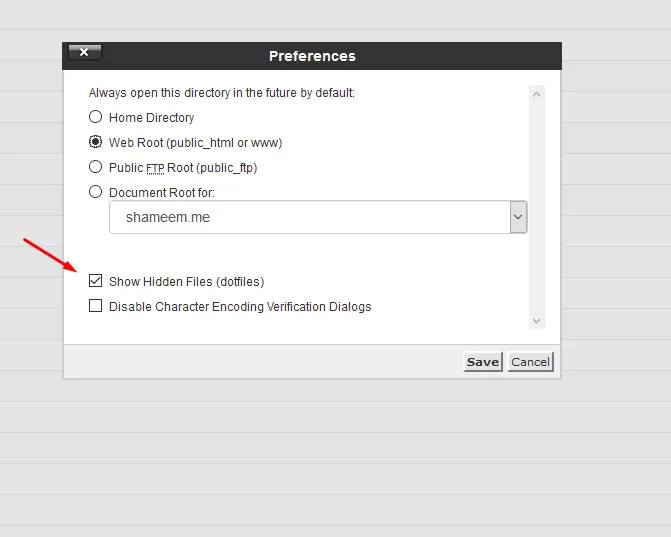
The usual advice you’ll find online is to open your hosting panel, turn on “show hidden files” in the file manager, open .htaccess at the WordPress root, and paste a few php_value lines.
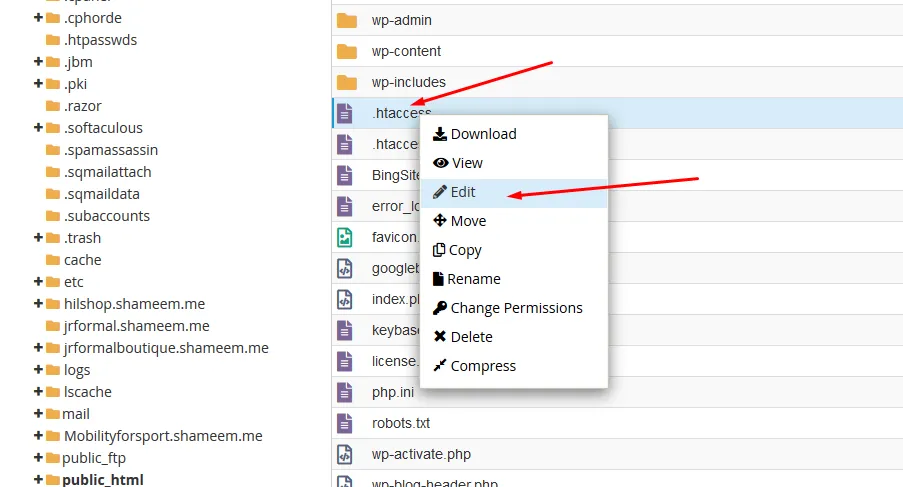
Then you edit the .htaccess file and add the config at the bottom.
The lines you’d add look like this:
php_value upload_max_filesize 256M
php_value post_max_size 256M
php_value memory_limit 512M
Or the equivalent in .user.ini if your host uses Nginx with PHP-FPM:
upload_max_filesize = 256M
post_max_size = 256M
memory_limit = 512M
This raises what WordPress reports as the upload limit, which moves the JS gate up by the same amount. If your backup is under the new number, you’ll get through. If it’s bigger, you’ll see the gate again, just at a higher value.
It’s a partial fix. Useful if you also want to fix Media Library uploads or WooCommerce product imports that hit the same ceiling, because those do care about the real PHP limit. But for All-in-One WP Migration specifically, it’s treating a symptom, not the cause. The plugin’s chunked uploader doesn’t care about your PHP upload limit in the first place.
If you hit something weirder
The two things I still see occasionally:
-
The JS patch didn’t take effect, and the limit message still shows the old value. Usually this is browser caching. Hard-refresh the import page, or open it in a private window. The inline script runs on every page load, so a fresh fetch is enough.
-
The upload starts but fails midway. That’s not a size problem, that’s a timeout or memory problem on the destination server. Check the PHP error log, because the plugin logs detailed errors. The common culprits are exhausted memory from an unusually large
wp_optionsdump and a reverse proxy (Cloudflare, Nginx) that kills long-running requests before the import finishes. Raisingmax_execution_timedoesn’t help, but bumping memory does.
Questions I get about this
Is there a maximum upload file size for the All-in-One WP Migration free version?
The import page shows 512 MB, but that’s the label from the JS gate. The uploader sends the archive in 5 MB chunks regardless of size. Once the gate is out of the way, what actually limits you is disk space and how long your PHP or reverse proxy will hold a request open.
Can I raise the limit without the Unlimited Extension?
Yes. The paid Unlimited Extension toggles the same flag this plugin (and the snippet above) does. If you don’t need their hosted backup and restore service, there’s nothing the extension does for the upload limit that a short filter can’t.
Why doesn’t raising upload_max_filesize in php.ini or .htaccess fix it?
Because All-in-One WP Migration never uploads the full file in one request. It chunks the archive before it hits PHP, so your server’s upload_max_filesize is already irrelevant for this plugin. Raising it only moves the JS gate up by the same amount. That’s useful for Media Library or WooCommerce product imports, where the real PHP limit matters, but it isn’t the right fix here.
Where did AI1WM_MAX_FILE_SIZE in constants.php go?
It was removed in version 7.71. The constant used to feed the displayed limit and the JS gate at the same time. After 7.71, the check reads from wp_max_upload_size() and an ai1wm_pro filter, which is what the plugin and snippet above target.
Does this also fix the Backups page Restore button?
Yes. The Restore button on the Backups page is gated behind the paid extension by default. The plugin and snippet above define Ai1wm.FreeExtensionRestore so a one-click restore from an existing backup archive works without buying the extension.
Will a plugin or core update break this fix?
It shouldn’t. Everything goes through public hooks and no plugin files are modified. If ServMask renames a hook in a future release, the filter would silently do nothing until I update the snippet, but nothing about the underlying import would break.
If you need to also exclude folders from your export to shrink the file before importing (which is often the simplest win), I wrote a companion post on excluding files and folders from All-in-One WP Migration exports that walks through the four exclude hooks the plugin exposes.
The thing I keep telling clients is that the 512 MB message isn’t a real wall. It’s a check that was added to make the upsell land. The chunked uploader behind it can handle almost any size, as long as you have the disk space and the memory. Once you see it that way, the fix looks less like a hack and more like flipping a flag that was set a little too conservatively.
Join the conversation
Have thoughts, questions, or a different take? I'd love to hear from you.
Powered by Giscus · Sign in with GitHub to comment. ·Privacy policy