
On this page
When a store owner tells me customers can’t book a date in WooCommerce Bookings, I set up a similar product on my test store and try to block the same date myself.
I was doing that with a cabin rental product when one night, November 14, showed as fully booked. The Bookings list in the admin said nobody had booked anything.
The booking was mine. Earlier, in another browser, I’d added that night to the cart without checking out. Bookings holds a date in a cart for 60 minutes, and the admin list doesn’t count it under All. So for an hour, no other customer could book November 14, and the admin showed nothing to explain why.
That’s what makes “why can’t customers book this date?” hard to answer. A date or slot can be blocked by the store’s hours, the product’s rules, a resource, the booking window, a buffer, or bookings that aren’t paid yet. The calendar shows all of them the same way: the date is grey or red, or the time just isn’t in the list.
So I read the availability code in Bookings 3.13.0 and set up four bookable products on a throwaway WordPress Playground site. I broke each one on purpose, confirmed the date or slot was blocked, then changed one setting and confirmed it was bookable again. The four cases below are the ones I’d check first, followed by everything else the code checks and a short checklist.
How does Bookings decide a slot is unavailable?
All of this happens on the product page, where the calendar is. That’s why bookable products show Read more on the shop page instead of Add to cart, and you can change Read more to Add to cart for bookable products if you want the buttons to match.
The checks live in a few places in the plugin. For time slots, get_bookable_minute_blocks_for_date() in includes/data-objects/class-wc-product-booking.php builds the list. It drops a slot if it starts before the minimum notice or after the maximum window, if it overlaps bookings that already fill Max bookings per block, if it doesn’t fit inside the available hours, or if the availability rules say no.
The rules come from get_availability_rules() in the same file. It merges three sets: resource rules, product rules, and the store-wide rules from Bookings > Settings > Store Availability. Then WC_Product_Booking_Rule_Manager::sort_rules_callback() sorts them, and the rules are applied in that order, so the last matching rule wins.
The sort uses priority first. A lower number always wins, and a rule with no priority gets 10 (line 512 of includes/class-wc-product-booking-rule-manager.php).
When two rules have the same priority, the level decides: store beats product, and product beats resource. Inside one level, the rule higher up the list wins. That matches the priority section of the Bookings docs, which puts it as store over product over resource.
Before any of this, the product’s “All dates are…” setting sets the starting value. “Available by default” means every date is open until a rule closes it. “Not-available by default” means every date is closed until a rule opens it, so a product with that setting and no rules has a fully grey calendar.
On my test store, with the default Bookings calendar styles, the colors already told me which group I was in. A red date was full of bookings. A grey date was closed by a rule, outside the booking window, or in the past.
Why are the next few days greyed out?
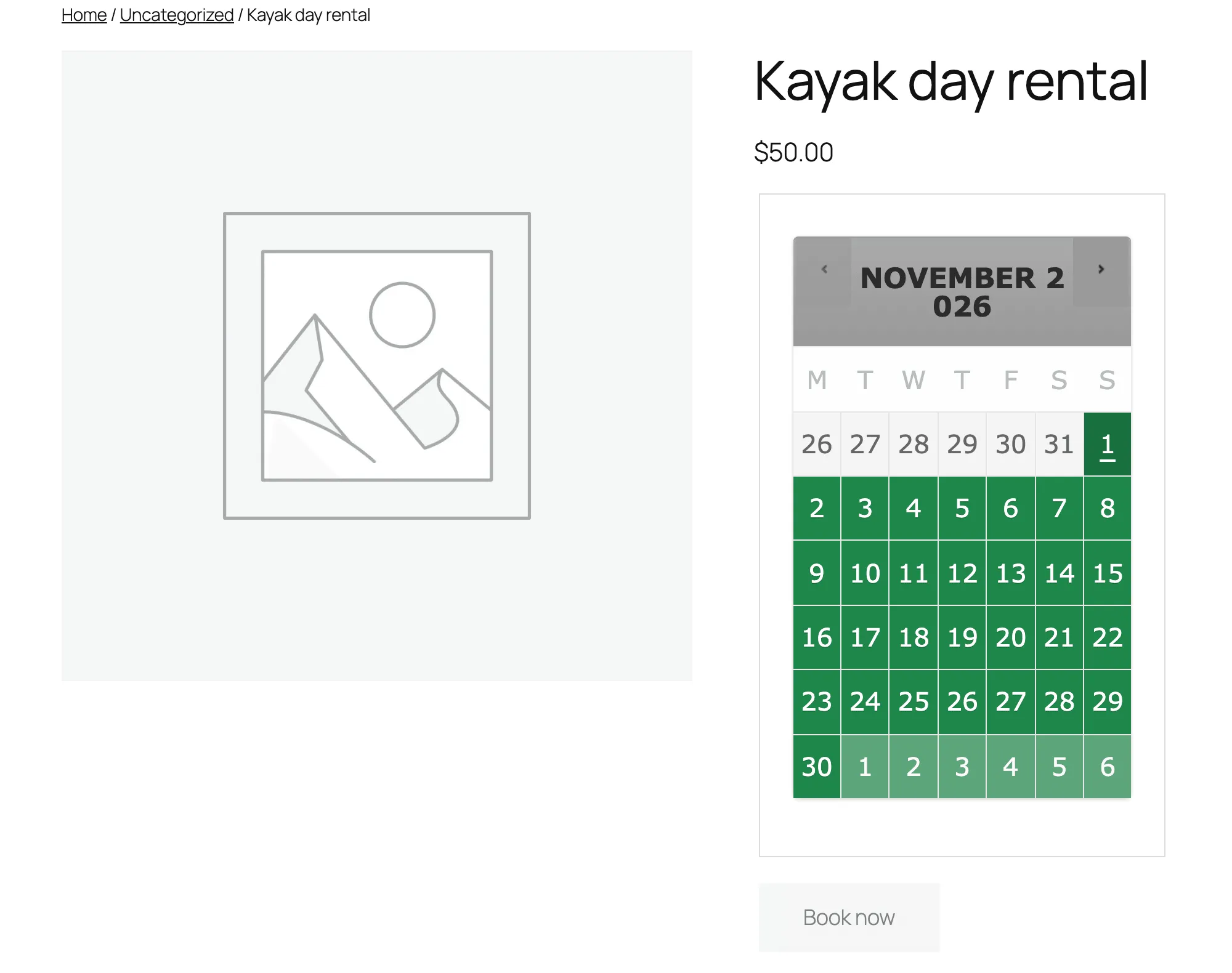
My first product, Kayak day rental, had Minimum block bookable set to 2 days. The store’s clock read Friday, October 30, and the calendar skipped October entirely and opened on November. The back arrow was disabled. October 30 and 31 were grey in the first row, and November 1 was the first date a customer could pick.
The setting is on the product’s Availability tab, next to Maximum block bookable. Both count from now, in the store’s timezone. The Bookings docs call the first one “how much notice you require before a booking can begin”.
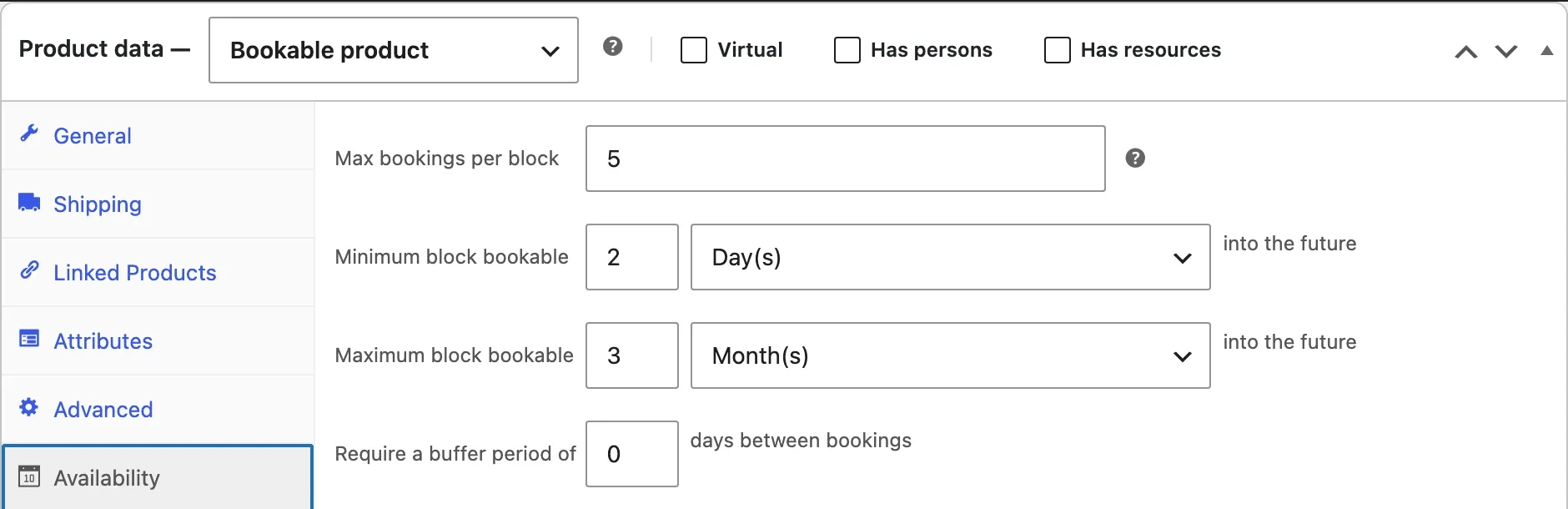
I set Minimum block bookable to 0, and October 30 and 31 both turned bookable. The maximum works the same way at the other end. A new product defaults to 12 months, and every date after that is grey.
On hourly products, the minimum counts to the minute. With 2 hours of notice, a slot that starts in 90 minutes is hidden. Slots that have already started are always hidden, whatever the setting.
Why is a time slot missing on an empty day?
Studio session was a 1-hour product, open 9:00 to 17:00 every day, with Require a buffer period of set to 1 hour. I expected eight slots on Saturday, October 31. I got four: 9:00, 11:00, 13:00 and 15:00. There were no bookings at all.
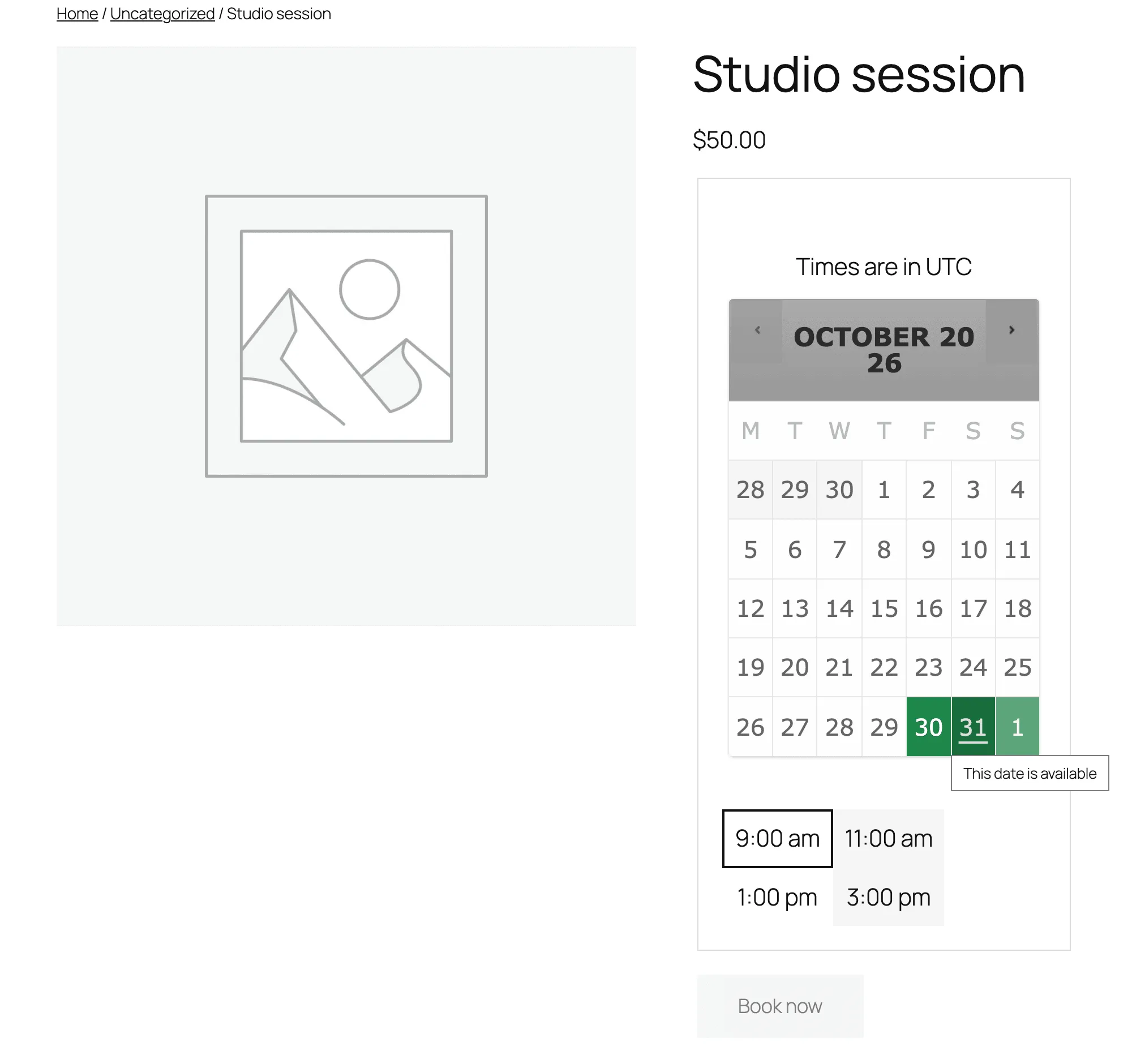
The buffer isn’t only added after a booking. It moves the whole grid. Line 2463 of class-wc-product-booking.php spaces each slot start by the block length plus the buffer, and the code comment above it gives an example: a 60-minute buffer turns starts of 480, 600 and 720 minutes into 480, 660 and 840. So 10:00, 12:00, 14:00 and 16:00 never appear, booked or not.
Two more details from get_buffer_period_minutes() in the same file. The buffer uses the product’s duration unit, so on an hourly product, 1 means one hour, and on a daily product, 1 means one day. With Adjacent Buffering ticked, the buffer counts twice when slots are built, which matches the buffer section of the docs.
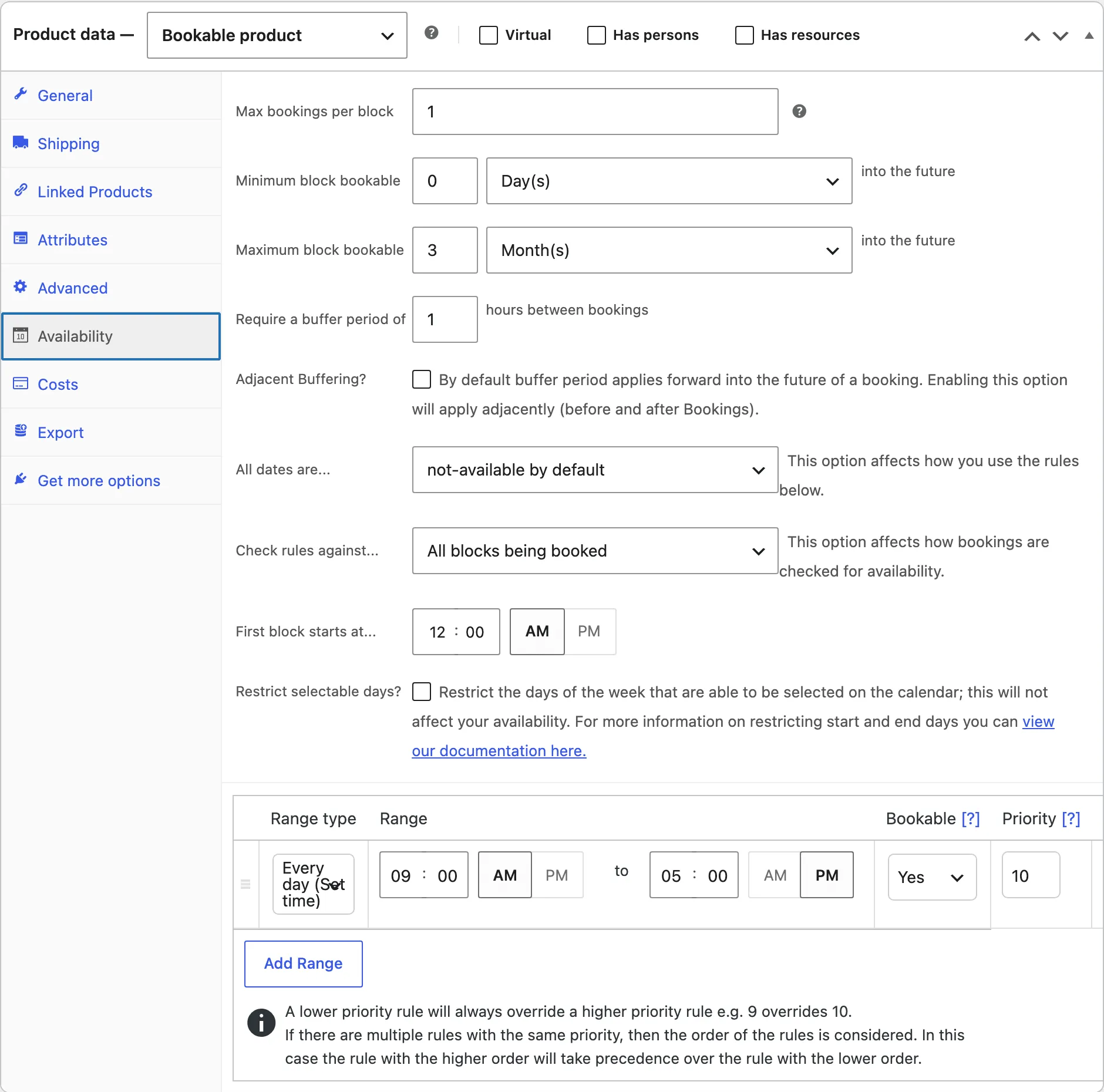
I set the buffer to 0 and reloaded. October 31 showed all eight slots, from 9:00 to 16:00. So a buffer costs slots even on a day with no bookings. “First block starts at…” on the same tab also moves where the day’s slots begin, so check it when the first slot looks wrong.
If a buffer leaves a date with a single slot, customers still have to click that one time before Book now works. I wrote a snippet to auto-select the only time slot in WooCommerce Bookings for that case.
Why is a date red when nobody booked it?
Cabin night allowed one booking per day. In one browser, I picked November 14 and clicked Book now.
In a second browser, as a different visitor, November 14 was red. Its screen reader text said “This date is fully booked and unavailable”. That’s the calendar at the top of this post.
When Bookings adds a booking to the cart, it saves it with the status In Cart. The default list of statuses that fill a slot, in get_wc_booking_statuses() in includes/wc-bookings-functions.php, is Unpaid, Pending Confirmation, Confirmed, Paid, Complete and In Cart. So a cart counts as a booking.
The admin side is where this gets confusing. My Bookings list showed All (0) and In Cart (1). The In Cart booking isn’t counted under All, so a store owner who opens the list sees no bookings for a date that customers can’t book.
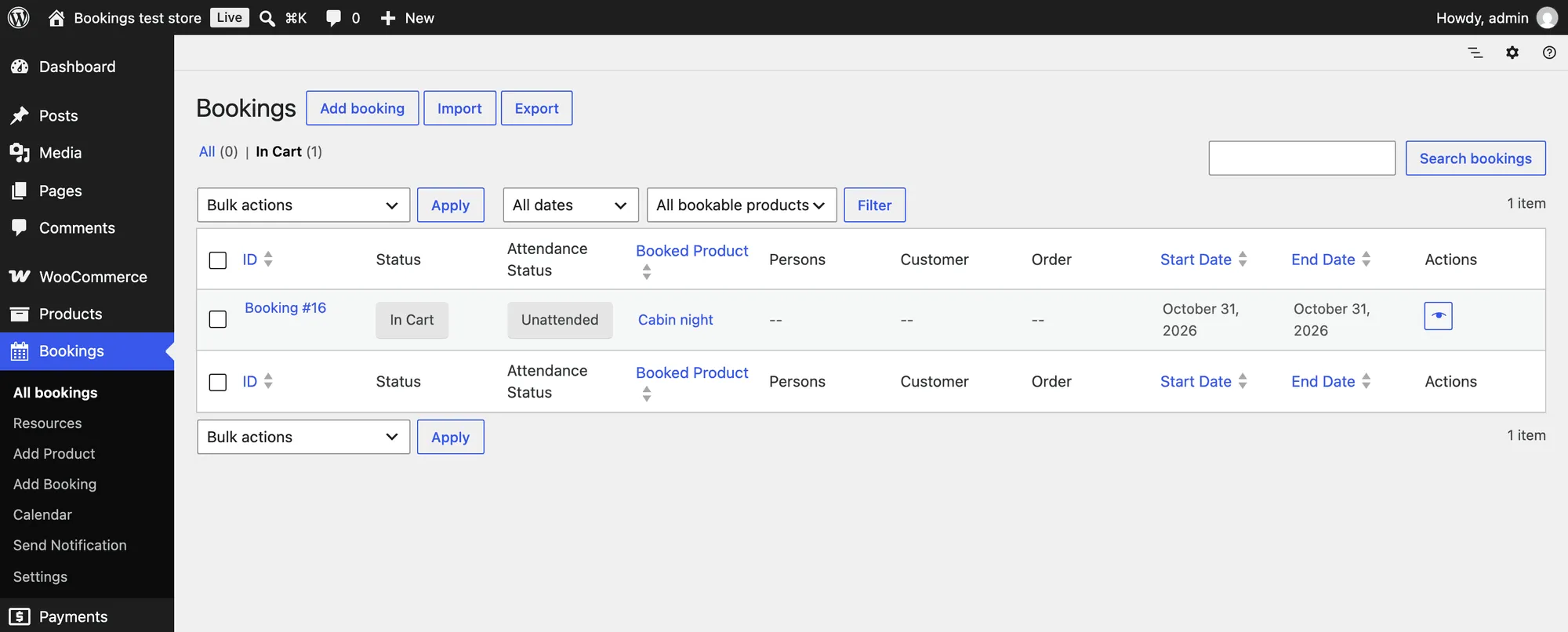
The hold doesn’t last forever. schedule_cart_removal() in includes/class-wc-booking-cart-manager.php schedules a wc-booking-remove-inactive-cart event 60 minutes after the booking goes into the cart. My test booking went in at 09:25:20 and its removal was scheduled for 10:25:20.
When that event runs, the booking is deleted and the date opens up. I ran the event and November 14 was green again in the second browser.
Removing the item from the cart frees the date right away. I added November 13 in one browser, saw it go red in the other, removed it from the cart, and November 13 was green on the next reload.
Two things can make the hold feel longer. The removal is a WP-Cron event, and WP-Cron runs when someone loads a page, so on a quiet store it can fire late.
And once checkout creates an order, the booking becomes Unpaid, which still fills the slot. I created an Unpaid booking for November 3 on the same product, and the Bookings slots endpoint in the REST API returned that date with 0 available.
An Unpaid booking frees the date when its order is cancelled, through cancel_bookings() in includes/class-wc-booking-order-manager.php. WooCommerce only cancels unpaid orders on its own when stock management is on and Hold stock under WooCommerce > Settings > Products > Inventory has a number of minutes. Otherwise the order, and the date, wait until someone cancels it.
If 60 minutes is too long for your store, the woocommerce_bookings_remove_inactive_cart_time filter changes it. Add this to your child theme’s functions.php or a code snippets plugin like WPCode:
// Purpose: Release WooCommerce Bookings dates held in a cart after 20 minutes instead of 60.
// Tested with: WordPress 7.1.4, WooCommerce 11.2.1, WooCommerce Bookings 3.13.0.
// Note: Applies to bookings added to the cart after the snippet is active.
add_filter( 'woocommerce_bookings_remove_inactive_cart_time', function () {
	return 20; // Minutes.
} );
With the snippet active, a booking I added at 09:33:51 got its removal scheduled for 09:53:51. Don’t go too low. The comment above that filter in the plugin warns that 5 minutes or less can remove the booking before the customer finishes checkout.
Why doesn’t a product rule open a closed day?
Saturday workshop was not-available by default, with one product rule: Saturday, bookable, priority 10. On its own, every Saturday was green. Then I added a Store Availability rule under Bookings > Settings that closes Saturday and Sunday, also at priority 10.
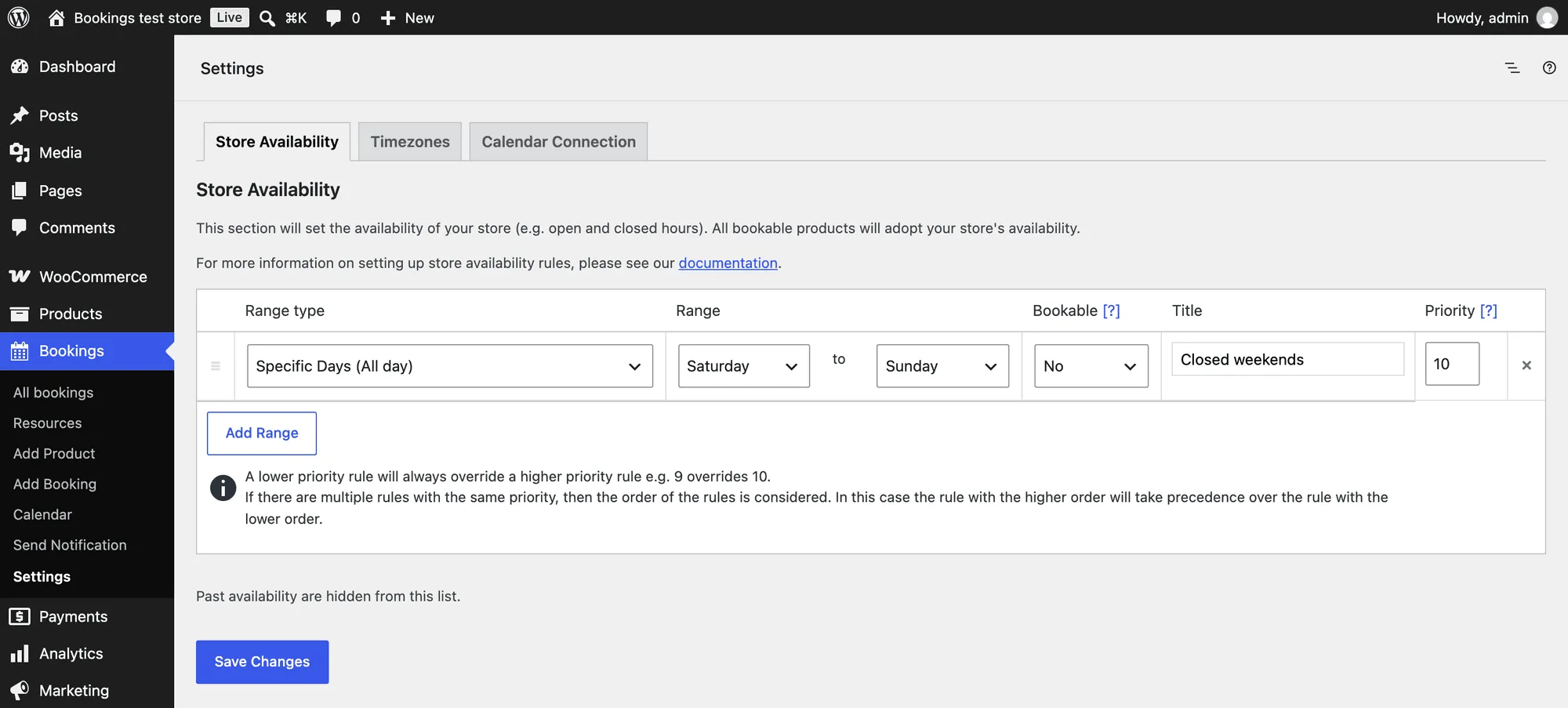
Every date on the workshop’s calendar went grey. The product rule said Saturdays were open. The store rule said they were closed. Both were priority 10, so the store rule won, as the sort above says it will.
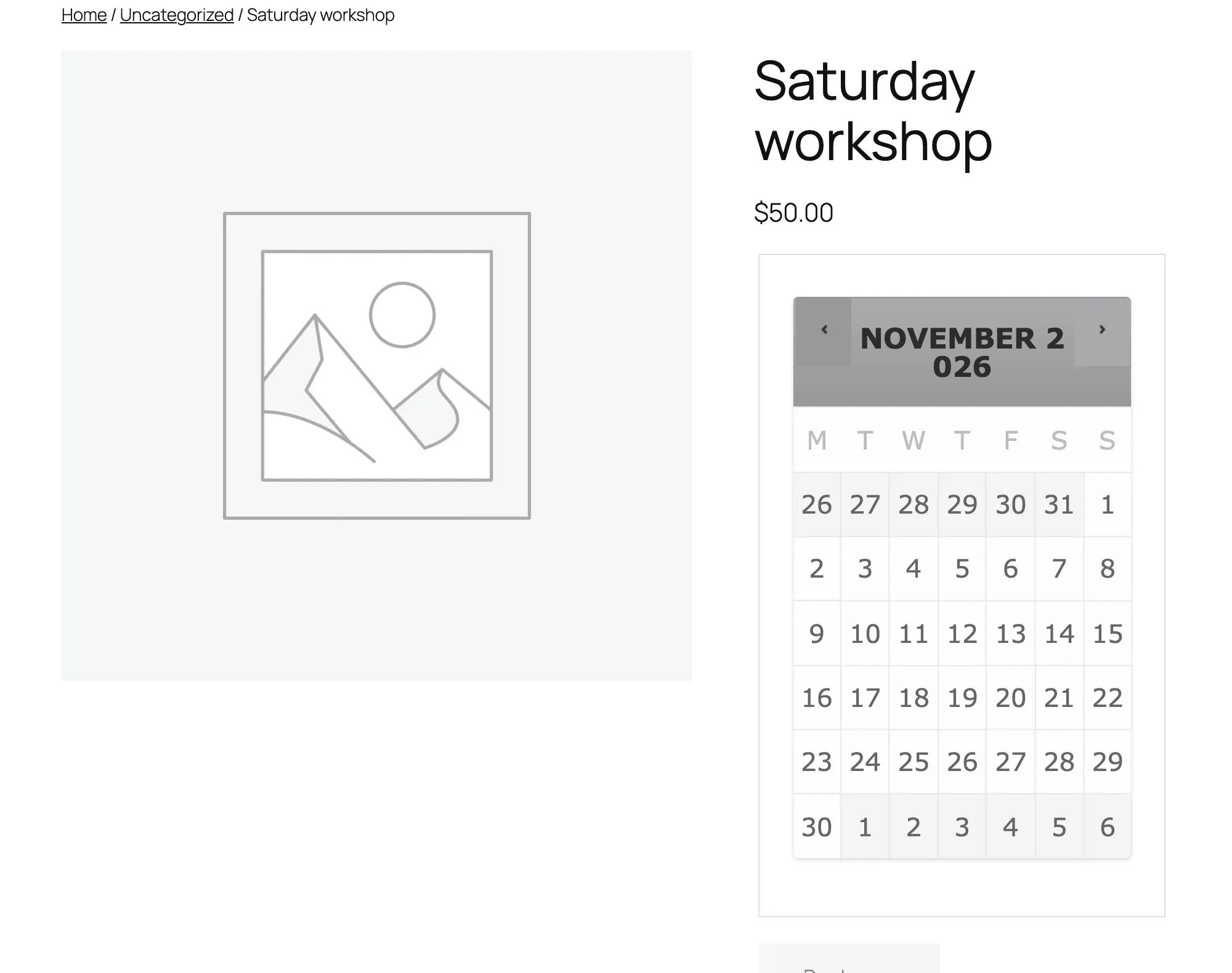
The fix is the priority number, not the rule. I changed the product rule’s priority from 10 to 9 and reloaded. October 31 and every Saturday after it turned green. Sundays stayed closed, because the store rule still covered them and no product rule opened them.
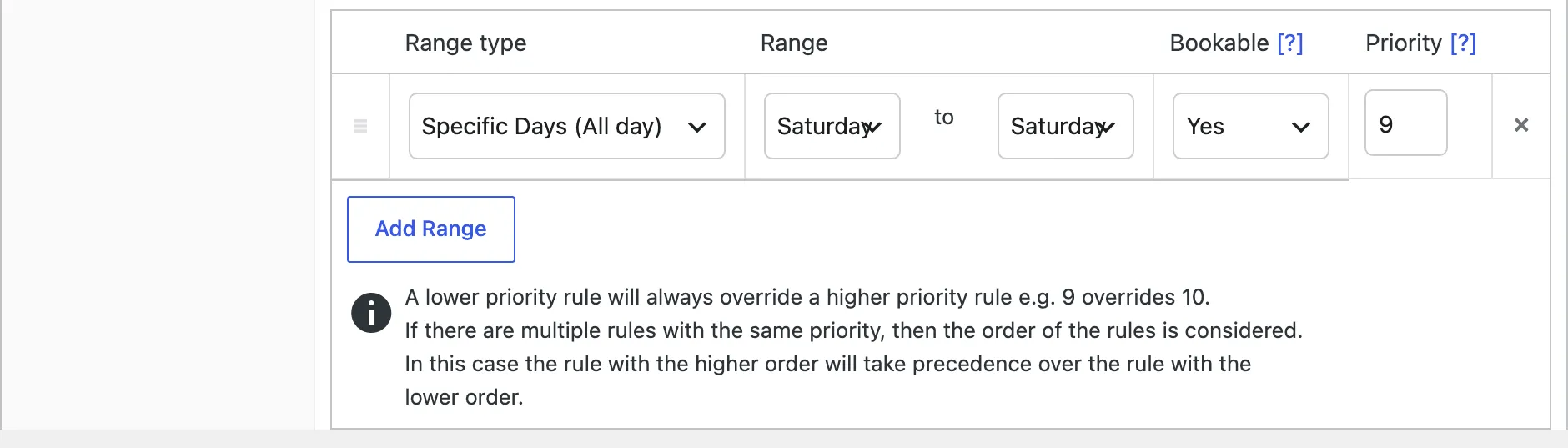
This is the case I’d check first for a whole product that went grey after someone touched the store hours. The Priority field on a new rule defaults to 10, so a store rule and a product rule tie unless someone changes the number.
Google Calendar can do the same thing without anyone touching the rules. With Sync both ways set under Bookings > Settings > Calendar Connection, the Google Calendar integration docs say events are pulled in as store-wide unavailable rules.
In the code, update_global_availability_from_event() in includes/class-wc-bookings-google-calendar-connection.php saves each event as a Store Availability rule with Bookable set to no and priority 10. So a personal event in that calendar closes the time for every bookable product, and a product rule at priority 10 can’t open it.
What else can block a slot?
These didn’t make my four tests, but they’re all in the same code path, so they belong on the list.
- Resources. When a product has resources, each resource can have its own Available Quantity and its own rules.
get_available_quantity()inclass-wc-product-booking.phpuses the resource’s quantity instead of Max bookings per block when the resource has one. At the same priority, resource rules have the least power of the three levels. - Persons. With Count persons as bookings ticked on the Persons tab, each person in a booking uses one place from Max bookings per block. A booking for 3 people on a product that allows 3 per block fills that block.
- Restrict selectable days. The docs say it “only prevents customers from choosing them as the start date”. The other days stay open for bookings that run across them.
- Check rules against. With All blocks being booked, a multi-day or multi-hour booking needs every block it covers to be open. A slot that would run past closing time doesn’t show.
- Timezone. Rules, the minimum notice and the maximum window all use the store’s timezone from Settings > General. The Timezones setting under Bookings > Settings can show hourly and minute slots in the visitor’s local time, but that only changes the display. A 9:00 to 17:00 rule means 9:00 to 17:00 store time.
How do I find the rule that blocks a slot?
When a date or slot is unavailable and nobody knows why, I go through it in this order:
- Check the date’s color on the product page. Red means bookings fill it. Grey means a rule, the booking window, or the past. If the date is green but a time is missing, start at step 7.
- Open Bookings > All bookings and click the In Cart view, because All doesn’t count it. Look for Unpaid bookings on that date too.
- Check Minimum block bookable and Maximum block bookable on the product’s Availability tab. Count from today in store time.
- Check “All dates are…” on the same tab. With not-available by default, the date needs a rule that opens it.
- Open Bookings > Settings > Store Availability. Any rule there at the same priority beats the product’s rule, so give the product rule a lower number.
- Look at Calendar Connection on the same screen. With Sync both ways, Google Calendar events show up as store rules.
- For a missing time slot, check the buffer period and First block starts at. A buffer moves every slot, even on an empty day.
- If the product has resources or persons, check the resource’s Available Quantity and rules, and Count persons as bookings.
Of the four, the red date was the only one the admin list hid from me, and it was also the easiest to fix. Before changing any rule, check the In Cart view.
Did this fix work on your site?
If it didn't, tell me what happened. I re-test reported fixes and update the post.

Shameem Reza Happiness Engineer at Automattic
I fix WooCommerce problems for a living and review plugins for WordPress.org. Every fix here is tested on a clean site first.



No comments yet. Ask the first question.