
On this page
- First, what is WordPress.org SVN really?
- Before uploading anything
- How did I do my first upload?
- Screenshots, banners, and icons (the boring but important part)
- Updating a plugin later (this is where I struggled)
- Updating only assets
- The error that almost broke my brain
- What finally made SVN feel simple?
- How do I recover when I mess things up in SVN?
- Why did I write this?
When my first plugin got approved on WordPress.org, I thought the hard part was over.
It wasn’t.
The real challenge started when SVN entered the picture.
I had used Git for years. SVN looked similar at first. Same commands, same terminal, same confidence. That confidence disappeared very quickly.
This post is not a reference guide. It’s me sharing how I actually learned to upload and update a WordPress plugin on WordPress.org using SVN on a Mac, after making mistakes, fixing them, and finally understanding how the system thinks.
If you’re about to upload your first plugin, or you keep getting weird SVN errors, this should save you time.
First, what is WordPress.org SVN really?
The biggest mistake I made early on was treating SVN like Git.
SVN on WordPress.org is not a development tool. It’s a release system.
You don’t push every change. You push finished work.
Once I accepted that, everything started to make sense.
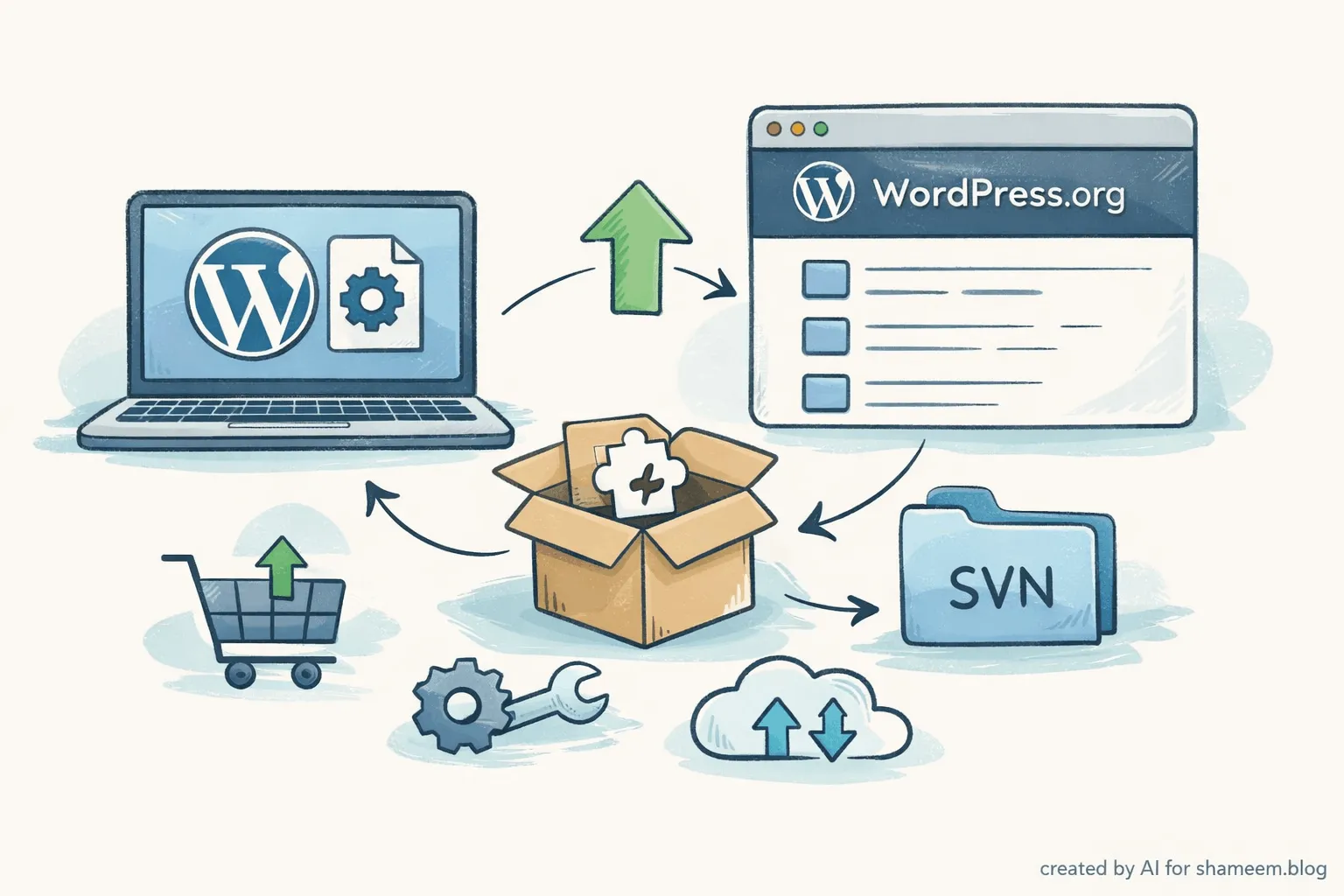
WordPress.org gives you three folders. Trunk, tags, and assets. That’s the entire world.
Trunk is where your plugin code lives. This is the version you actively work on.
Tags are snapshots. Each tag is a released version. Users download from here, not from the trunk.
Assets are not code. Screenshots, banners, icons. These live outside the plugin zip.
If you remember only one thing, remember this. You edit the trunk. You never edit tags.
Before uploading anything
After your plugin is approved, WordPress.org creates an SVN repository for you automatically.
You don’t upload a zip file. You don’t push to GitHub. You push files into SVN.
If your plugin is not approved yet, this is where the process starts: https://wordpress.org/plugins/developers/add/
Once it’s approved, you’re ready.
How did I do my first upload?
I created a clean folder on my Mac. I didn’t reuse an old project directory. That helped more than I expected. This is what I ran:
mkdir assistify-svn
cd assistify-svn
Then I checked out the plugin repository. That single command created the trunk, tags, and assets folders for me.
svn co https://plugins.svn.wordpress.org/your-plugin-slug .After that, I copied my plugin files into the trunk. The main plugin file went directly inside it, not inside another folder. That part matters more than it looks.
I copied screenshots, banners, and icons into the assets folder.
At this point, SVN didn’t know about any of my files yet. So I added trunk and assets once and committed everything together.
svn add trunk assets
svn ci -m "Initial release" --username YourWPUsername
That was my first mistake-free commit.
After that, I created a tag from the trunk for version 1.0.0 and committed the tag.
svn cp trunk tags/1.0.0
svn ci -m "Tagging version 1.0.0" --username YourWPUsername
That single step is what actually makes the plugin available to users.
When I skipped tagging during early tests, nothing showed up. That’s normal.
Screenshots, banners, and icons (the boring but important part)
Screenshots only work if you follow WordPress.org’s naming rules. There’s no flexibility here.
Screenshots go into the assets folder and must be named screenshot-1.png, screenshot-2.png, and so on. The numbers must match the screenshot descriptions inside readme.txt.
Banners also live in assets. You should include both banner sizes. The smaller one is the primary one. The bigger one is for retina screens.
Icons also go into assets. Two sizes are enough in most cases.
None of these files affect plugin updates. They are pulled separately by WordPress.org.
You can learn more about how asets works here: https://developer.wordpress.org/plugins/wordpress-org/plugin-assets/
Updating a plugin later (this is where I struggled)
This part confused me the most.
When you update a plugin, you do not touch tags first. You always update the trunk.
I changed my code inside the trunk. I updated the plugin version in the main file. I updated the stable tag in readme.txt.
After making code changes and updating the version and stable tag, I run this:
svn statusThat command is your best friend.
Files marked with M were already tracked. I edited them. That’s fine.
Files marked with a question mark were new. SVN didn’t know about them yet.
This is where I kept messing up.
You do not run svn add on everything. You only add the new files. For new files, I add only the specific file.
svn add trunk/includes/integrations/class-hotel-booking-integration.phpOnce the new files are added, you commit to the trunk.
svn ci -m "Update trunk for version 1.1.0" --username YourWPUsernameAt this point, nothing is released yet. You’ve only updated the trunk.
To release the update, you copy the trunk into a new tag, like tags/1.1.0, and commit that tag.
svn cp trunk tags/1.1.0
svn ci -m "Tagging version 1.1.0" --username YourWPUsername
That’s the release.
Updating only assets
This part is simple once you trust the system.
If I update screenshots, banners, or icons, I only touch the assets folder.
No version bump. No new tag.
I just commit the assets and wait for WordPress.org to refresh.
svn add assets/new-screenshot.png
svn ci -m "Update plugin assets" --username YourWPUsername
That’s it.
The error that almost broke my brain
At some point, I kept getting this error.
Access to '/!svn/me' forbidden
It looked serious. It wasn’t.
SVN didn’t know who I was.
The real issue was that I had multiple WordPress.org accounts and different username casing on the same Mac (I cleanedup other’s ID later). SVN is extremely strict about this.
ShameemReza is not the same as shameemreza.
What fixed it permanently was always committing with an explicit username, and clearing SVN’s cached credentials when things felt off.
rm -rf ~/.subversion/auth
svn ci -m "Commit message" --username ShameemReza
Once I did that, the errors stopped completely, and never came back.
What finally made SVN feel simple?
The moment SVN became easy was when I stopped fighting it.
I stopped treating it like Git. I stopped over-adding files. I stopped editing tags.
I let the trunk be messy. I let tags be frozen. I let assets live on their own.
SVN isn’t flexible, but it’s predictable. And for releases, that’s a good thing.
How do I recover when I mess things up in SVN?
At some point, you will mess something up. I still do.
Maybe you added the wrong file. Maybe you committed too early. Maybe your working copy feels out of sync.
The good news is SVN is very hard to break if you know where to look.
The first thing I always run is this.
svn statusThat command tells me the truth. No guessing.
If I see a file marked with ?, it means SVN doesn’t know about it yet. Nothing is committed. If I see M, it’s just a local change.
If I added a file by mistake and haven’t committed yet, I undo it like this.
svn revert path/to/file.phpIf I want to discard all local changes and start fresh, I do this.
svn revert . --recursiveIf my local copy feels outdated or strange, I update it.
svn upThat pulls the latest state from WordPress.org and usually fixes things instantly.
One important thing I learned the hard way. If a commit already went through, don’t panic and don’t rewrite history.
Fix it in the trunk and release a new version. That’s how WordPress.org expects you to work.
SVN is strict, but it’s also forgiving if you stay calm and let it guide you.
Why did I write this?
I wrote this mostly for future me.
Because six months from now, I’ll forget the details again. And when that happens, I want a post that sounds like me explaining it to myself, not documentation yelling commands.
If you’re reading this and you’re stuck, you’re not doing anything wrong. SVN just takes a different kind of patience.
Once it clicks, it stays clicked.

Shameem Reza Happiness Engineer at Automattic
I fix WooCommerce problems for a living and review plugins for WordPress.org. Every fix here is tested on a clean site first.


No comments yet. Ask the first question.