
On this page
Before I publish a WooCommerce fix or code snippet, I break my test store on purpose. I make the problem happen, add the fix, check that the problem is gone, and write down the exact versions I used. If I can’t make the problem happen, I don’t publish a fix for it.
That still doesn’t make it safe on your store. Yours has a theme I didn’t test with, other plugins, and maybe an older WooCommerce. So below is every step I take, and you can run the same ones on a staging copy before a fix goes live.
I ran them all again this month and re-tested all 14 snippet posts on this site, one at a time, on WordPress 7.1.4, WooCommerce 11.2.1 and PHP 8.3. Where a post needed an extension, I used the current one: Subscriptions 9.3.0, Bookings 3.13.0, Product Add-Ons 8.4.6, Product Bundles 8.5.17 and Min/Max Quantities 5.2.16.
All 14 snippets still worked, but three posts gave advice that was out of date.
WooCommerce 11.1 added a setting and a filter for the notice in hiding the confirm your email address notice, so the snippet had become the long way round.
The post on skipping the cart and going straight to checkout told everyone to turn on the cart redirect setting, when it only matters for the AJAX Add to cart buttons on shop pages.
On the EPUB invalid download link post, the Skip to the snippet link jumped to a block of quoted core code instead of the fix. I updated all three the same day.
Every snippet post here has a row of Tested with chips under the title, and a chip is only worth something if you know what’s behind it. Here’s what’s behind mine.
Reproduce it before fixing anything
A fix for a problem I haven’t seen is a guess. So the first step is always the broken state, on a site where nothing else can take the blame.
That site has WooCommerce, the extensions the problem involves, and a default theme. Nothing else. If the problem shows up there, it belongs to WooCommerce or that extension. If it doesn’t, the cause lives somewhere in the store’s own setup, like a plugin conflict or the theme, and the fix is a different one.
Which site I use depends on the issue. WordPress Playground gives me a throwaway site I can start and drop in minutes. Laravel Herd runs the local sites I keep.
And when the problem might come from the hosting itself, I use a staging host. Query Monitor goes on all of them.
Sometimes the problem only happens on a store owner’s site, and I need to see it there first. That doesn’t need a shared password. Temporary admin access without a password is the safer way in, with an expiry you pick.
A clean site has an obvious weakness: real stores aren’t clean. A snippet that works next to WooCommerce and a default theme can still clash with a page builder or a caching plugin on yours. I accept that trade.
The clean site tells me the fix is right. It can’t tell me the fix is right next to everything you run, which is why each post names what it was tested with, and why your next step is a staging copy of your own store.
Write down the exact versions
While the bug is on screen, I note the versions: WordPress, WooCommerce, PHP, and each extension involved. Not “latest”. The number.
Those numbers become the chips. On the post about aligned 4-week subscriptions, they read WordPress 7.1.4, WooCommerce 11.2.1 and WooCommerce Subscriptions 9.3.0.
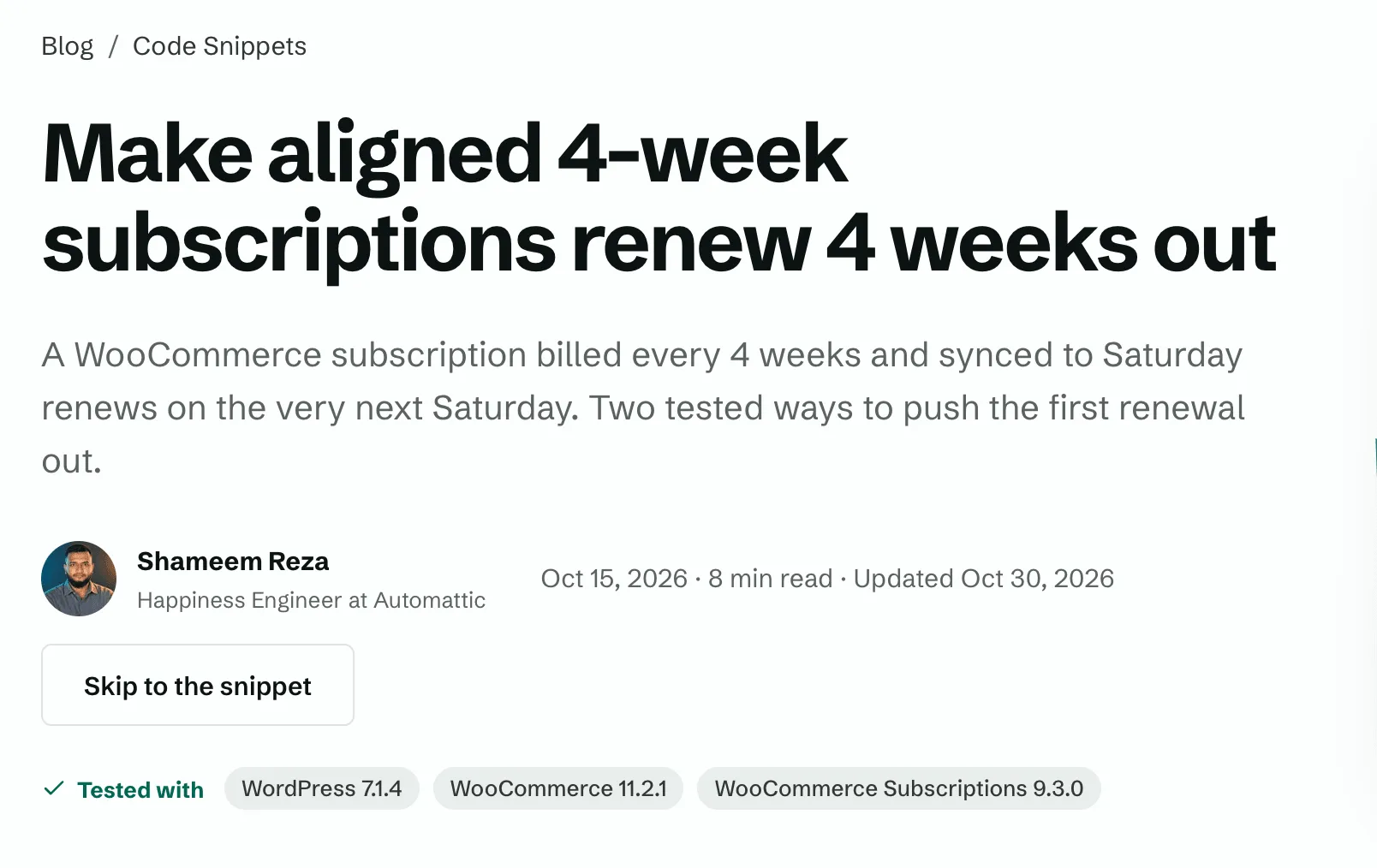
A chip is a date stamp, not a promise. If your versions are newer than mine, the snippet will probably still work. But that’s exactly the gap where my re-test found three posts that needed changes, so check the numbers before you trust the code.
Keep the fix in hooks and filters
Every fix I publish hooks into WooCommerce or WordPress through an action or a filter. I never edit core files or an extension’s files. The next update overwrites them, and the fix disappears without a word.
Function names get a prefix so they can’t clash with another plugin’s function of the same name. And every post says where the code goes: your child theme’s functions.php, or a code snippets plugin.
Old snippets are where this goes wrong most. This one is in the style a lot of older tutorials used, and I added it to a throwaway Playground site for this post:
add_action( 'woocommerce_single_product_summary', 'howitest_show_product_id', 25 );
function howitest_show_product_id() {
	global $product;
	echo '<p>Product ID: ' . esc_html( $product->id ) . '</p>';
}
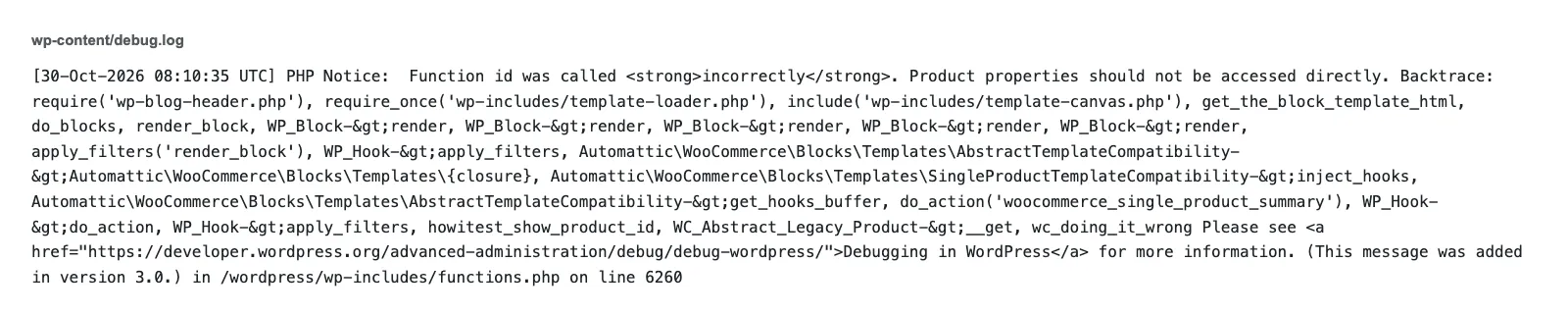
On WooCommerce 11.2.1 it still prints the right ID. That’s what makes it easy to miss. WooCommerce has flagged direct property access since 3.0, and every product page load raises a notice. The fixed version uses the getter and checks it really has a product:
add_action( 'woocommerce_single_product_summary', 'howitest_show_product_id', 25 );
function howitest_show_product_id() {
	global $product;
	if ( ! $product instanceof WC_Product ) {
		return;
	}
	echo '<p>Product ID: ' . esc_html( $product->get_id() ) . '</p>';
}
I ran both on the same Playground setup. The page looks identical. Only the first one writes to the log. If you write longer snippets or your own plugin, PHPCS with WordPress Coding Standards and PHPStan for WordPress and WooCommerce catch many mistakes before a page load does.
Read the debug log, even when the page looks right
A page that looks right proves very little, as the snippet above shows. Before I publish, I turn on the debug log in wp-config.php:
define( 'WP_DEBUG', true );
define( 'WP_DEBUG_LOG', true );
define( 'WP_DEBUG_DISPLAY', false );
Then I load every page the fix touches and read wp-content/debug.log for errors, warnings and deprecations. I want no line that points at the fix. The WordPress guide to debugging in WordPress explains each constant.
Query Monitor shows the same problems while you’re still on the page. With the old snippet active, its item in the admin bar turned orange, and the Doing it Wrong panel named the function, the file and the line in the mu-plugin.
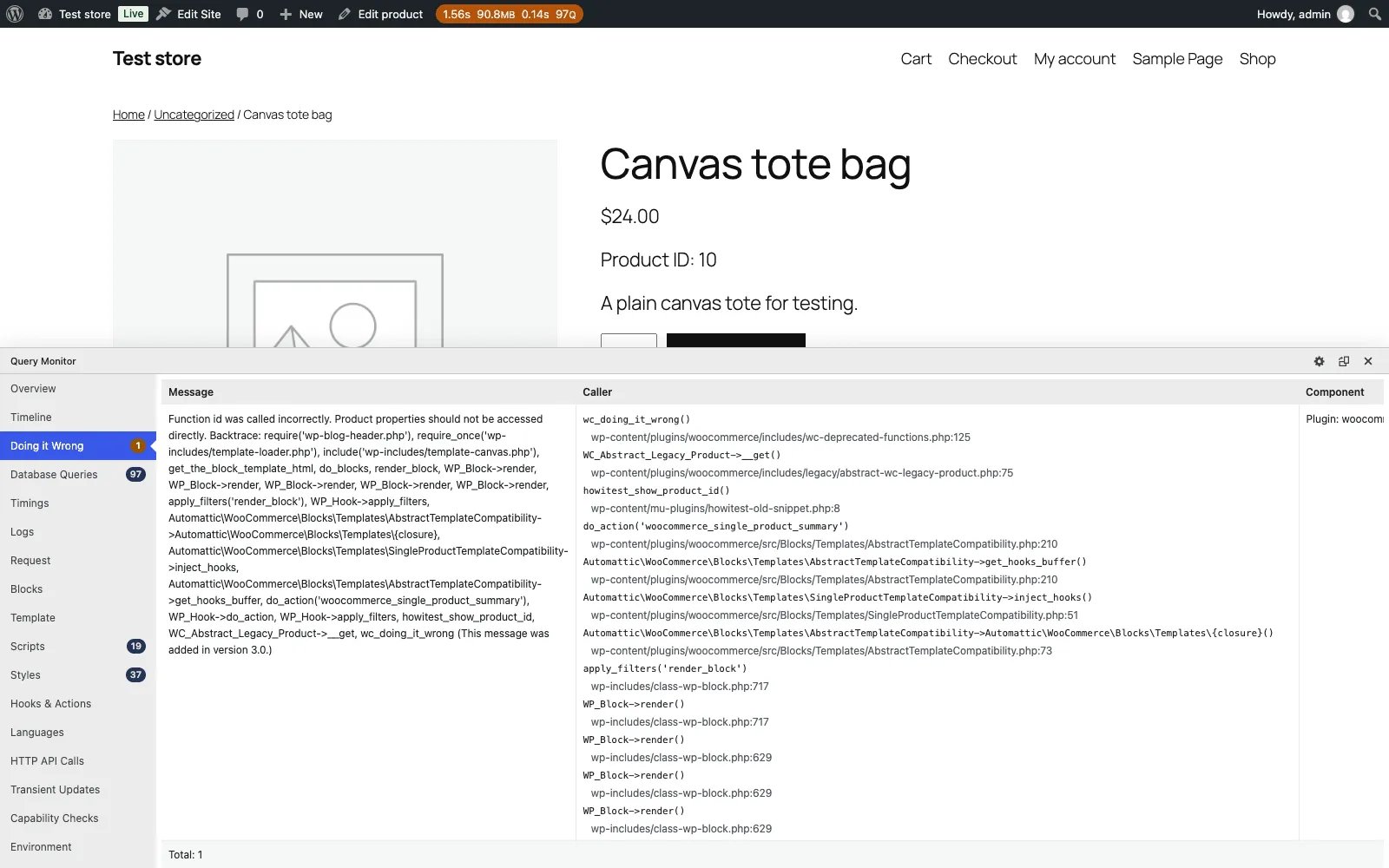
Taking these screenshots caught me out, though. Logged in as the admin, with Query Monitor 4.1.1 active, the notice showed in the panel and debug.log stayed empty. The same page loaded as a guest wrote the line to the log.
So if you only read one of them, you can miss it. Check the panel as an admin, and the log after a guest visit.
Check the variants that matter
A lot of snippet bugs hide in the case the author never clicked. When they matter for the fix, I check these:
- Guest and logged-in customers.
- Simple and variable products.
- The block cart and checkout, and the classic ones.
- HPOS, when the store is older.
The cart and checkout pair catches the most. Classic checkout snippets rely on hooks in PHP templates, and the Checkout block never runs those templates. I wrote about that when adding a custom dropdown to the block checkout. A snippet can work perfectly on one and do nothing on the other.
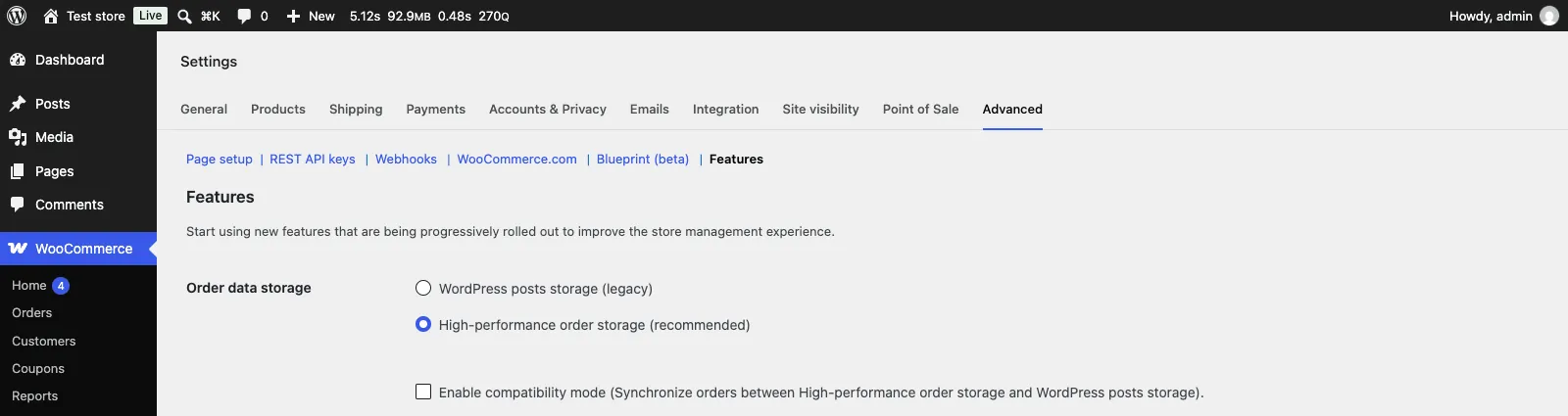
HPOS, high-performance order storage, keeps orders in their own tables instead of WordPress posts. The HPOS documentation says it’s the default for new stores from WooCommerce 8.2. A store created before that may still use the legacy posts storage.
So I don’t test HPOS on every fix, but on an older store I check which storage it uses and test on the same one. The setting is under WooCommerce > Settings > Advanced > Features, in Order data storage.
What happens after I publish
The October re-test found three stale posts in one day. Between re-tests, readers find them.
Every post ends with “Did this fix work on your site?” A “No” opens a short form: what happened, your versions if you want to add them, and an email only if you’d like a reply. It comes to me, and I re-test the fix and update the post.
A version number says what worked on my test site on one day. A “No” with your versions tells me where it stopped working.
A checklist you can copy
[ ] Reproduce the problem on a clean site: WooCommerce, the extensions involved, a default theme.
[ ] Write down the exact versions: WordPress, WooCommerce, PHP, each extension.
[ ] Fix it with an action or a filter. No edits to core or extension files.
[ ] Prefix every function name.
[ ] Note where the code goes: child theme functions.php or a code snippets plugin.
[ ] Turn on WP_DEBUG_LOG and read wp-content/debug.log after loading each page the fix touches.
[ ] Load those pages as a guest and as a logged-in customer.
[ ] If the fix touches products, try a simple and a variable product.
[ ] If it touches the cart or checkout, try the block and the classic versions.
[ ] On an older store, check Order data storage under WooCommerce > Settings > Advanced > Features.
[ ] Run it on a staging copy of the real store before it goes live.
The next time you copy a snippet from anywhere, this site included, open WooCommerce > Status and compare your versions with the ones the post was tested on. If yours are newer, run the first six lines of that checklist before the code goes near your live store.
Did this answer your question?
If not, tell me what you were looking for. Your question might be my next post.

Shameem Reza Happiness Engineer at Automattic
I fix WooCommerce problems for a living and review plugins for WordPress.org. Every fix here is tested on a clean site first.


No comments yet. Ask the first question.